Projects, tags, and structuring

Organize Keeping exactly as it suits you.

Set up the time tracking in Keeping so it seamlessly fits your workflow or the workflow of your organization. Enable or disable projects, tasks, and tags.

Budget report of Doorn Consultancy displayed on a large screen.

Time Accountability

Clients and Projects

If you or your organization works on a project basis, you can set up Keeping so that team members can track hours against projects. Each project is linked to a client, providing you with insights into your work through the reports.

By working with clients and projects, you can bring structure to the hours tracked. Additionally, you maintain time accountability for each client.

Furthermore, Keeping allows you to directly invoice hours logged or simplify payroll administration for personnel from the reporting dashboards.

To fully understand the hours, you can specify whether a project has direct or indirect hours. This will be included in the reports.

  • Enable or Disable Projects for Clients; Use projects when working on a project basis.
  • Distinguish between Direct and Indirect Hours; So that this is included in the reports.
  • Invoicing Connections; Directly invoice hours logged from projects.
  • Payroll Administration; Directly process logged hours of employees in payroll administration.
  • Real-Time Overview in Various Reporting Dashboards; Overview of all activities of team members for clients and projects.
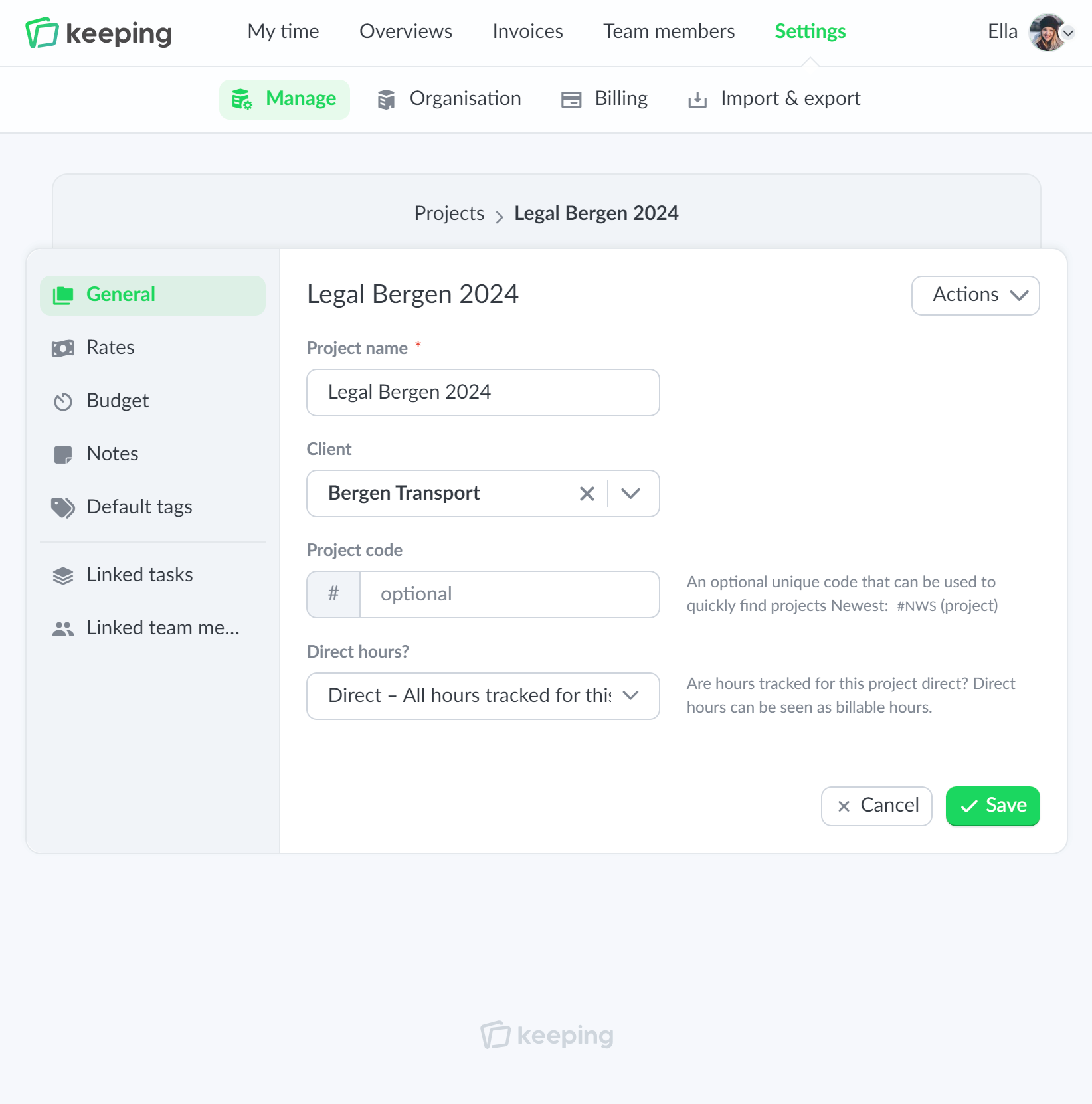
Editing a project in the settings
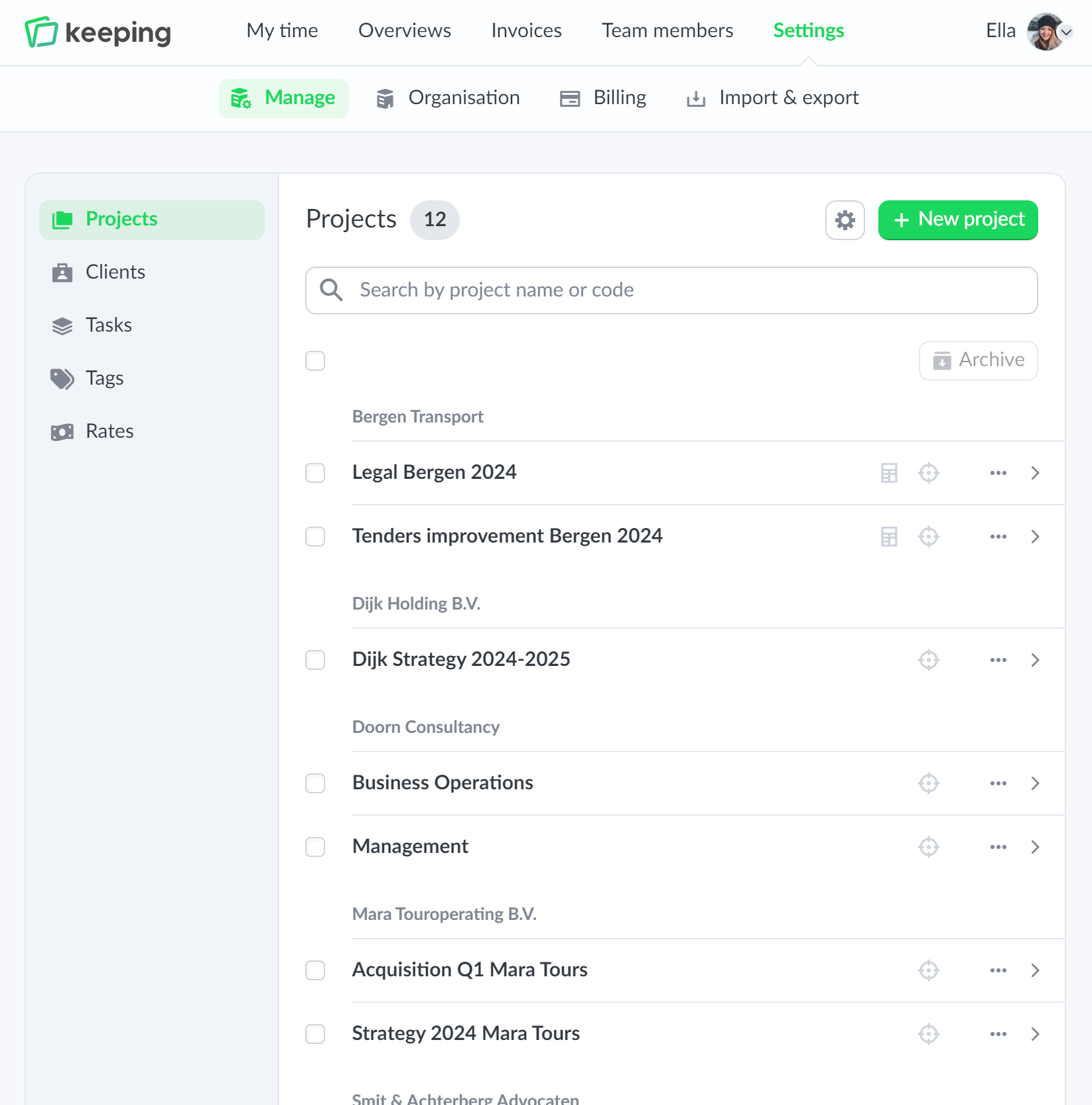
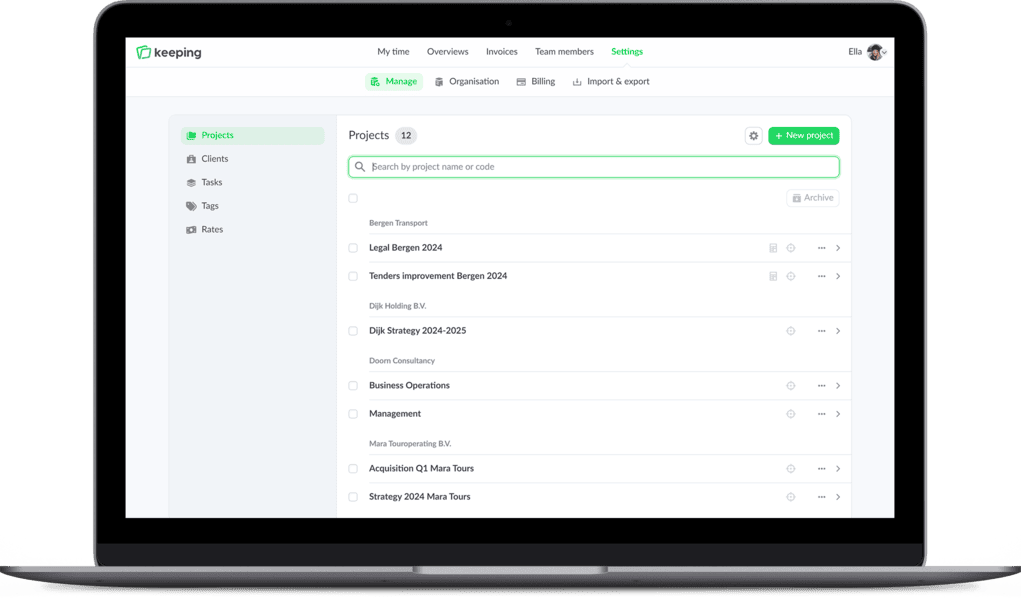
Overview of projects in the settings as a list
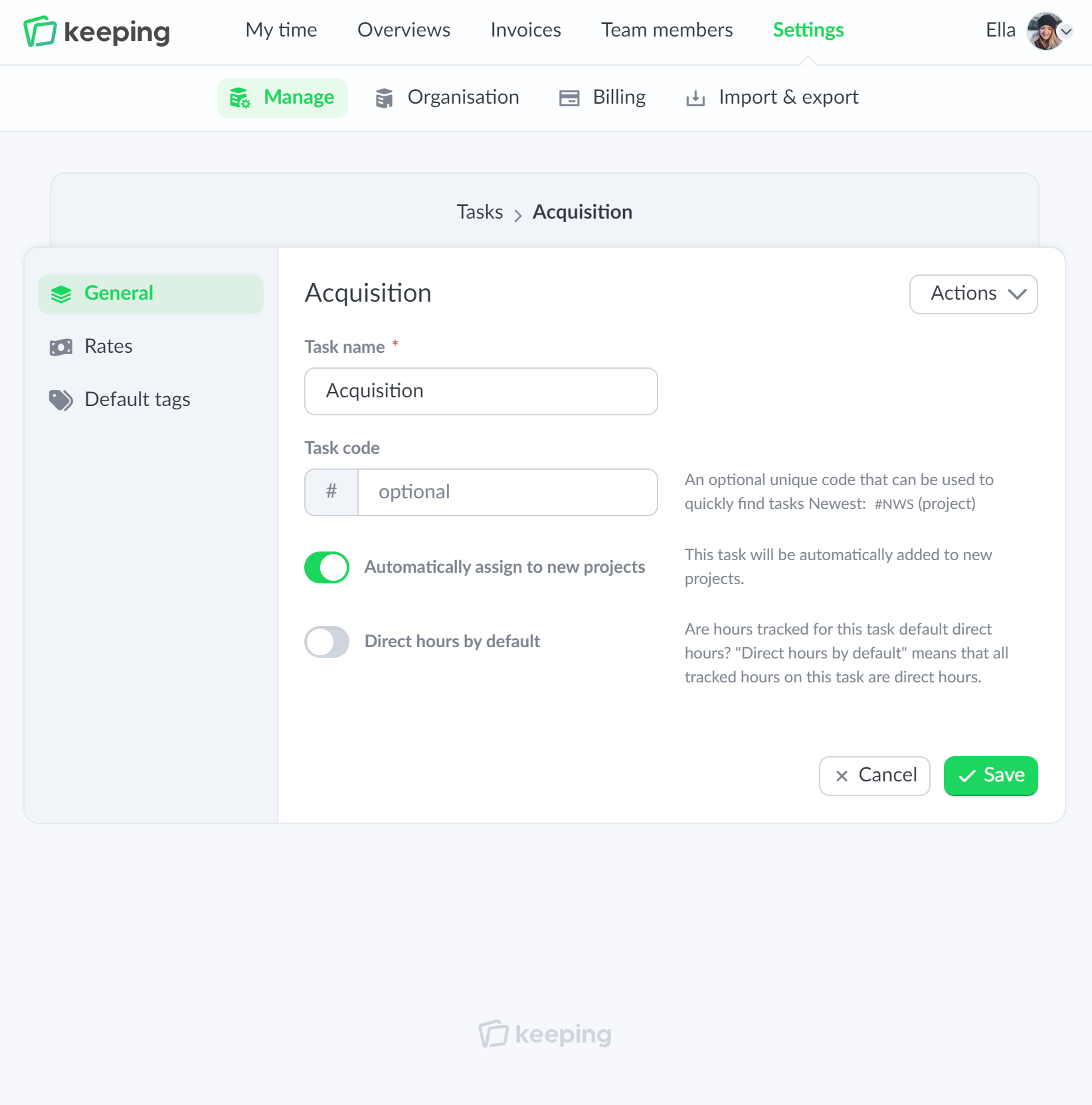
Editing a task in the settings
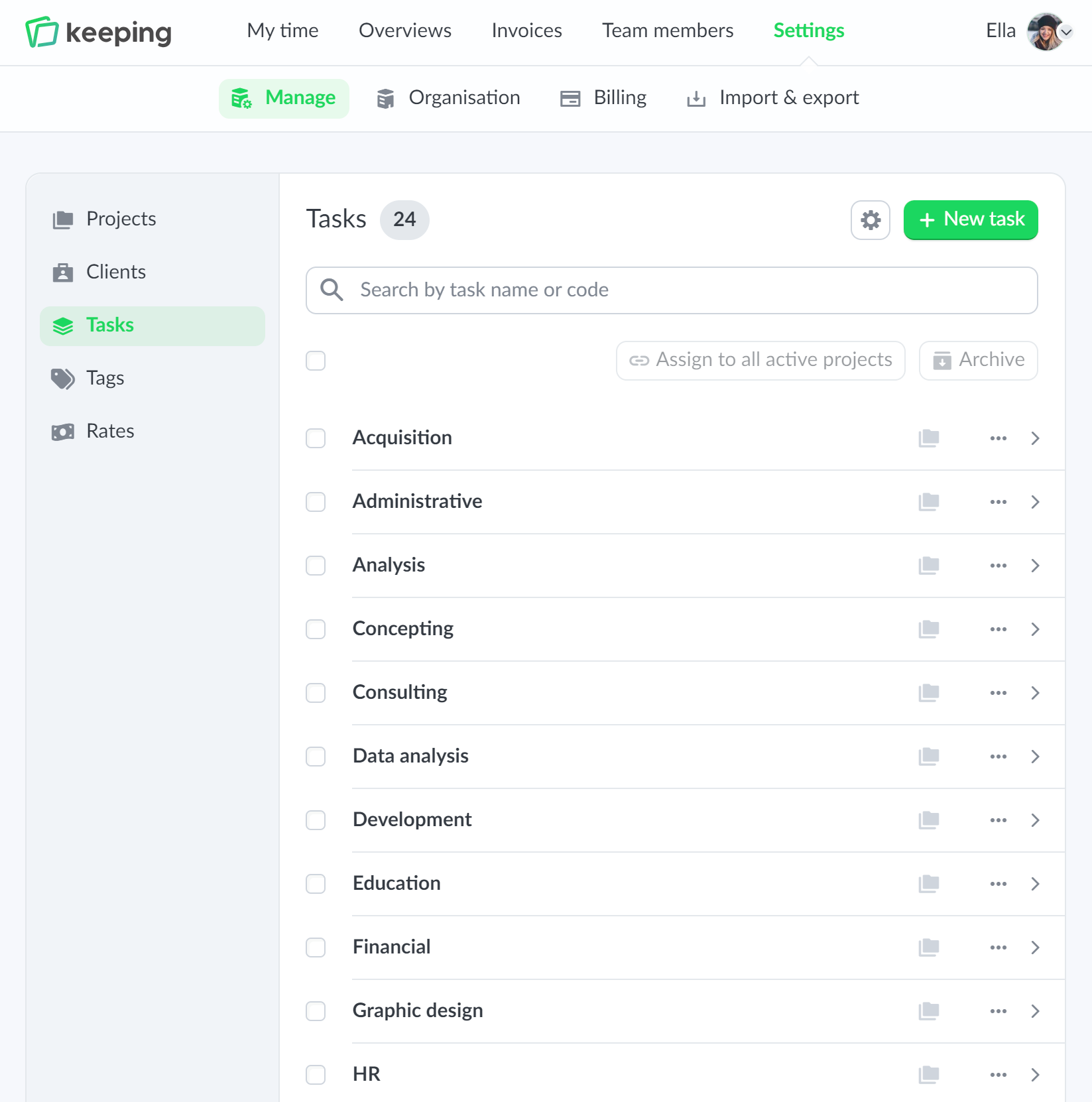
Overview of tasks settings as a list

More detail

More detail with tasks

When working in a project-based manner and you want to add more detail to the hours within that project, you can work with tasks within Keeping. However, even if you are not working in a project-based manner, you can still work solely with tasks. In both scenarios, tasks provide a solution for clarifying your hours.

A team member can then track hours on different tasks (for each project). Since tasks can be linked to multiple projects, you ultimately gain more insight into the work across all projects through the reports.

To fully understand the hours, it can be specified whether a task involves direct or indirect hours. This will then be included in the reports.

  • Enable or disable tasks; Gain more insight into work by categorizing it into tasks.
  • Works with projects or without projects; Use projects when working in a project-based manner.
  • Differentiate between direct and indirect hours; So that this is included in the reports.
  • Real-time overview in various reporting dashboards; Overview of all activities from clients, projects, and tasks.

Improve your time tracking with Keeping

Starting with Keeping is free. Discover it yourself.

Stopwatch to clock hours illustration

Pro Universal

Deeper dip into your time with tags

If you or your organization do not work in a project-based manner but still want more structure in time management, you can work with tags. tags can also be used by organizations that do work in a project-based manner in combination with projects and tasks, providing further insight into hours.

Tahs are overruling projects and tasks and can provide new information about non-project or non-task-related hours. For example, consider tagging grant hours or a specific component of a project that encompasses multiple tasks.

  • Drilling down on projects or tasks; A more accurate specification of hours.
  • Overruling of projects and tasks More insight into non-project or non-task-related hours.
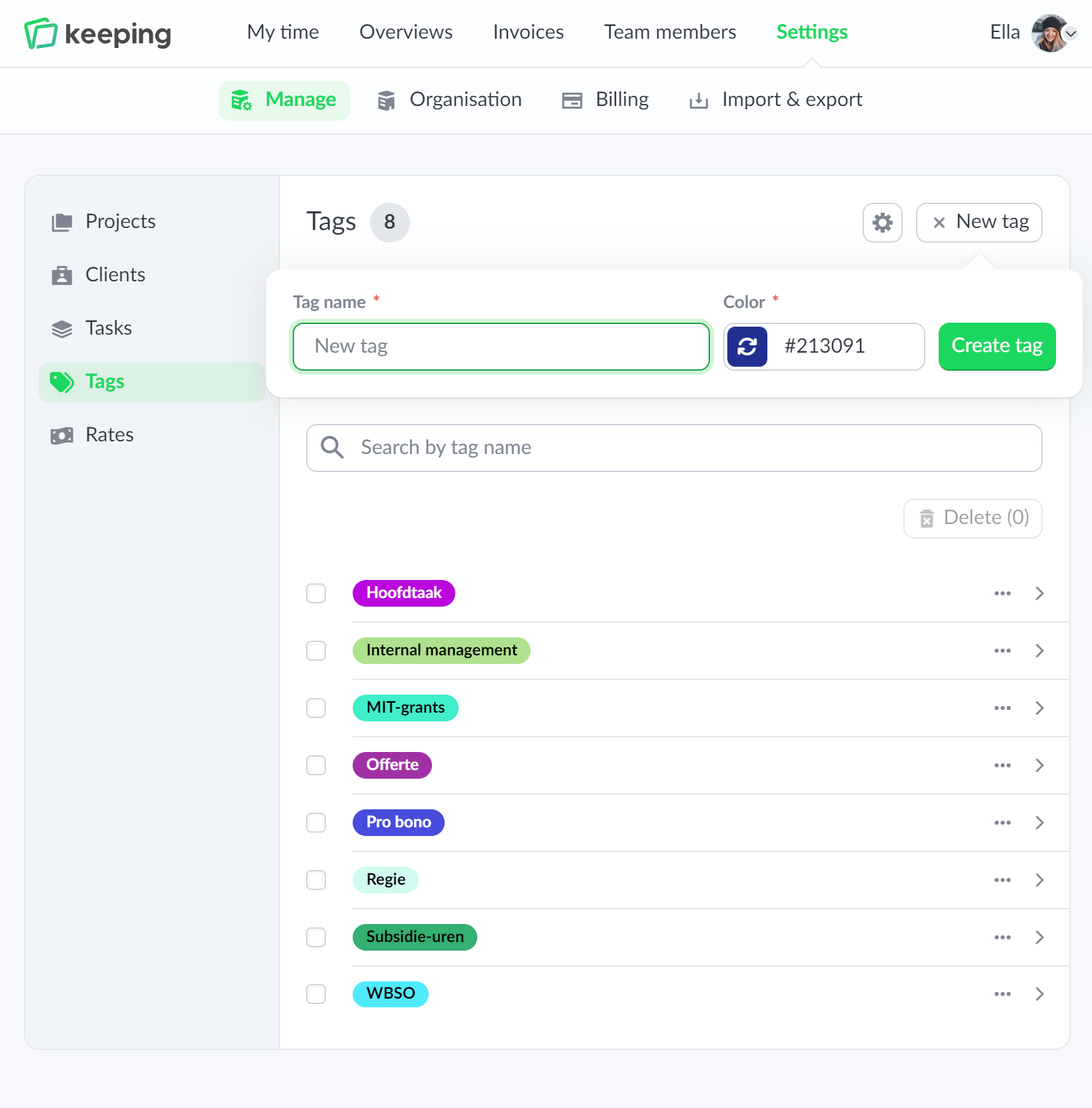
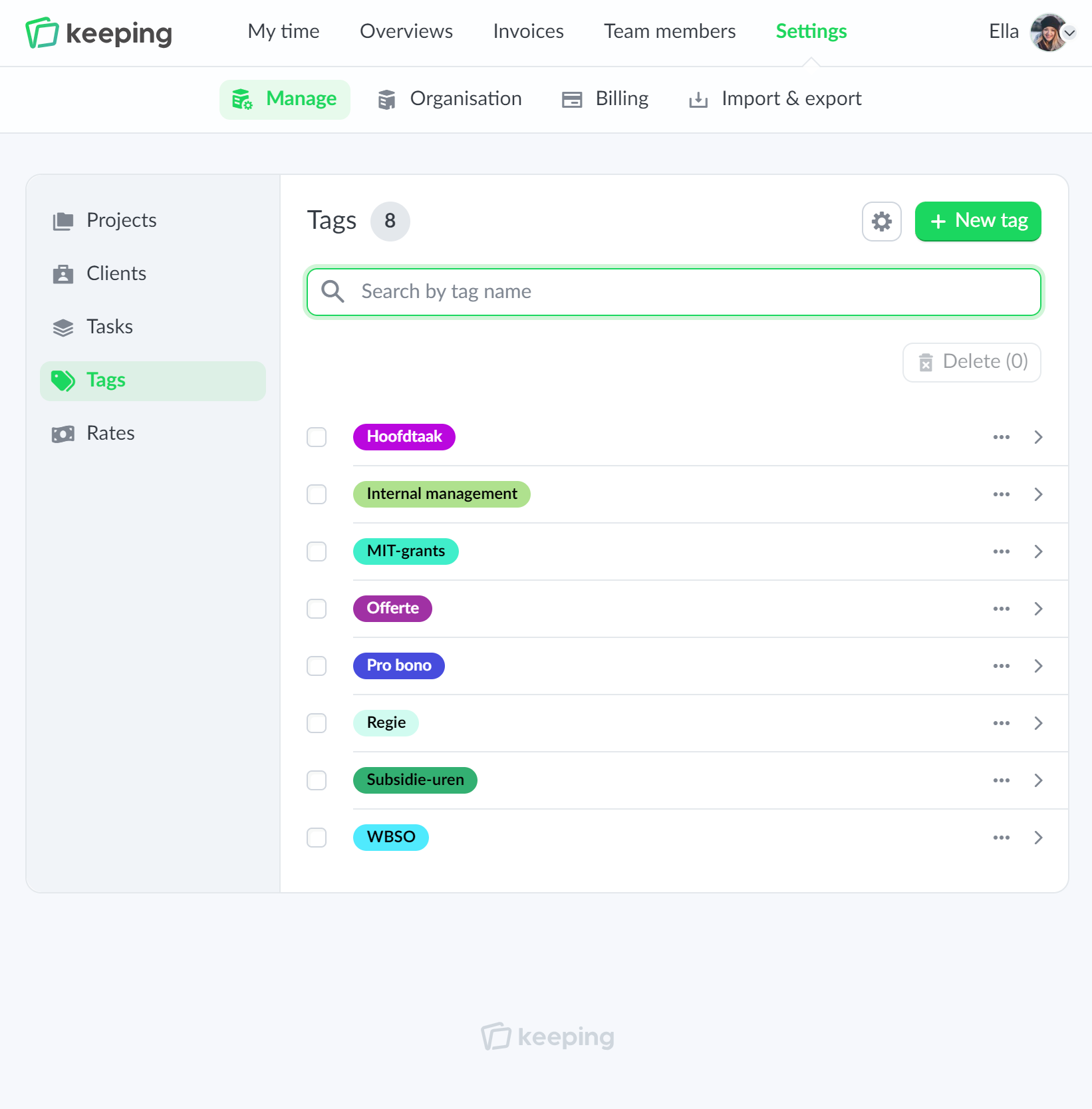
Overview of tags settings as a list
Overview of tags management settings as a list