Control over hours

Get more control over hours with the detailed reports of Keeping

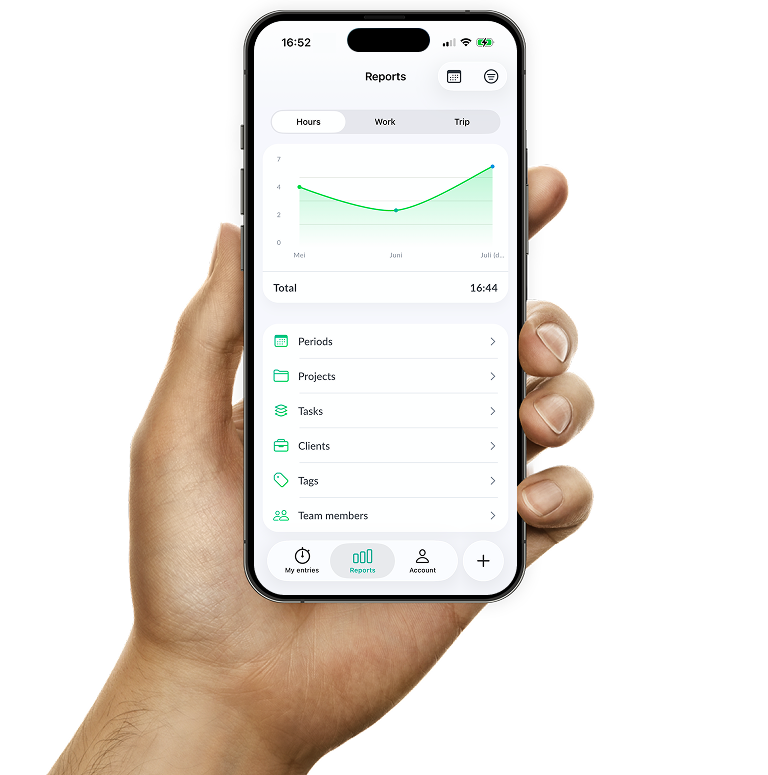
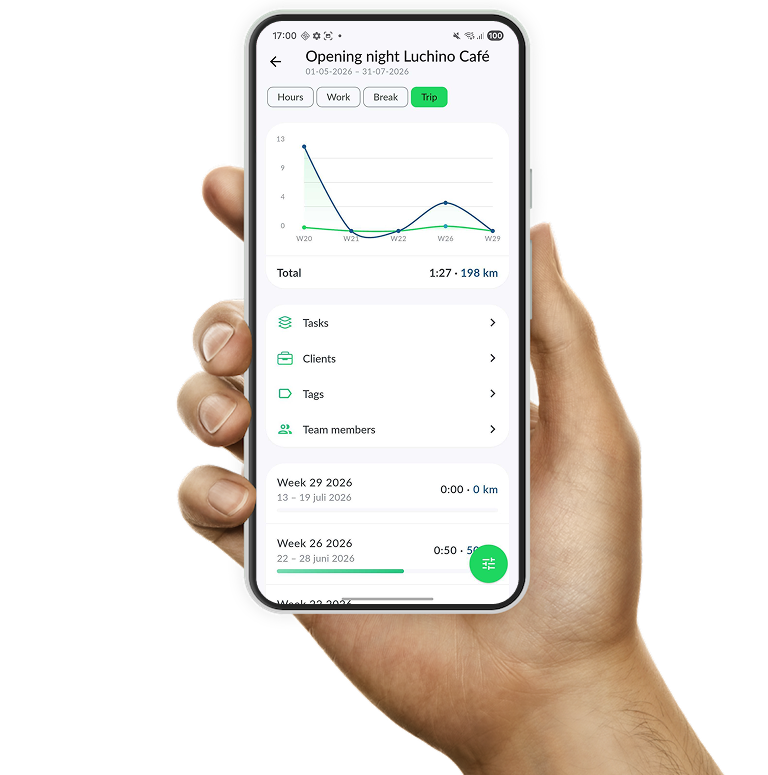
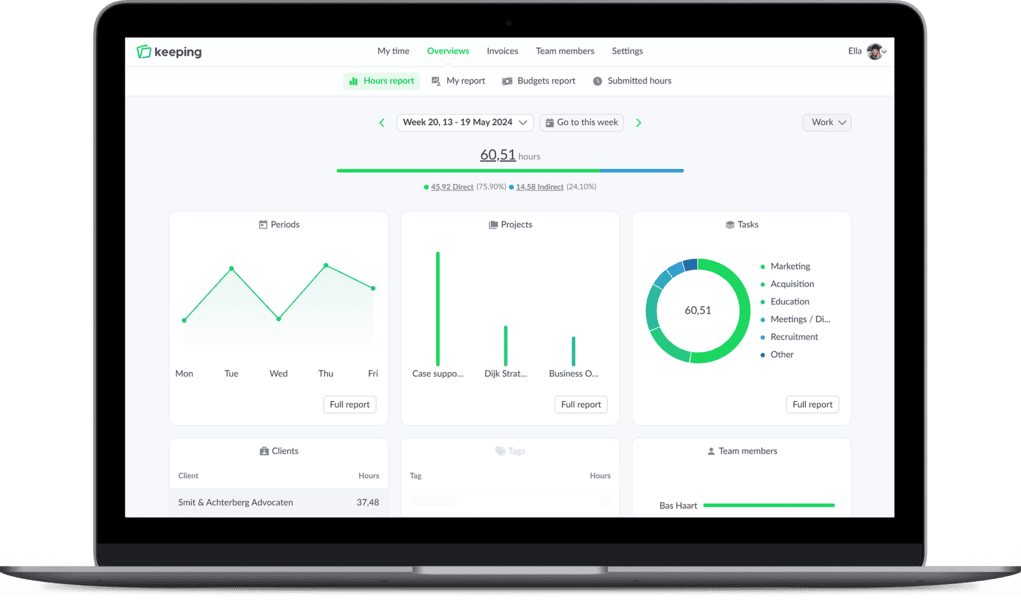
Keeping offers comprehensive reporting dashboards that allow you to zoom in on tracked hours. Depending on the selected settings that fit your workflow, there are reports per client, project, task, team member, tag, and integration.

These reports can be enhanced with project budgeting, enabling you to see at a glance whether a project stays within budget.

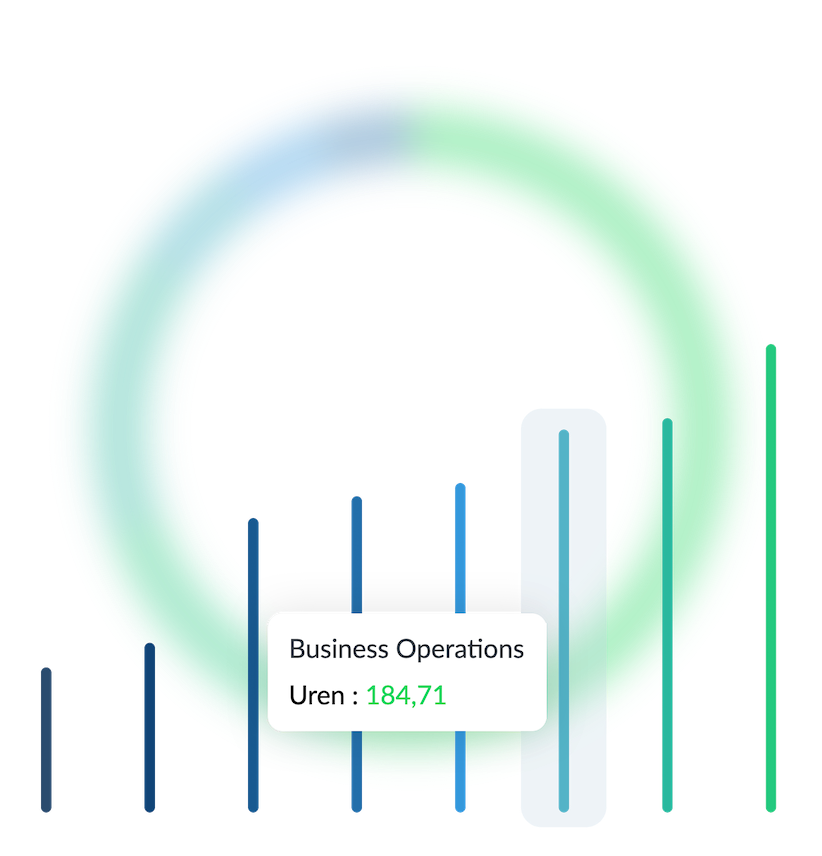
Collage of reports in Keeping
Example of reports in Keeping

Reports

Client reports

Through the client report, you have a direct overview of the number of hours worked for a specific client. Do you work with projects and/or tasks? Then this report distinguishes between projects and tasks worked on, as well as which team members were involved.

From the client report, you can click through to other reports to further analyze the recorded hours. Additionally, you can easily create an invoice for this client based on the tracked hours.

  • Dashboard with project reporting; Including all recorded hours for a client per project.
  • Dashboard with task reporting; Including all recorded hours per task.
  • Real-time overview of hours; You can immediately see the hours tracked for the client.
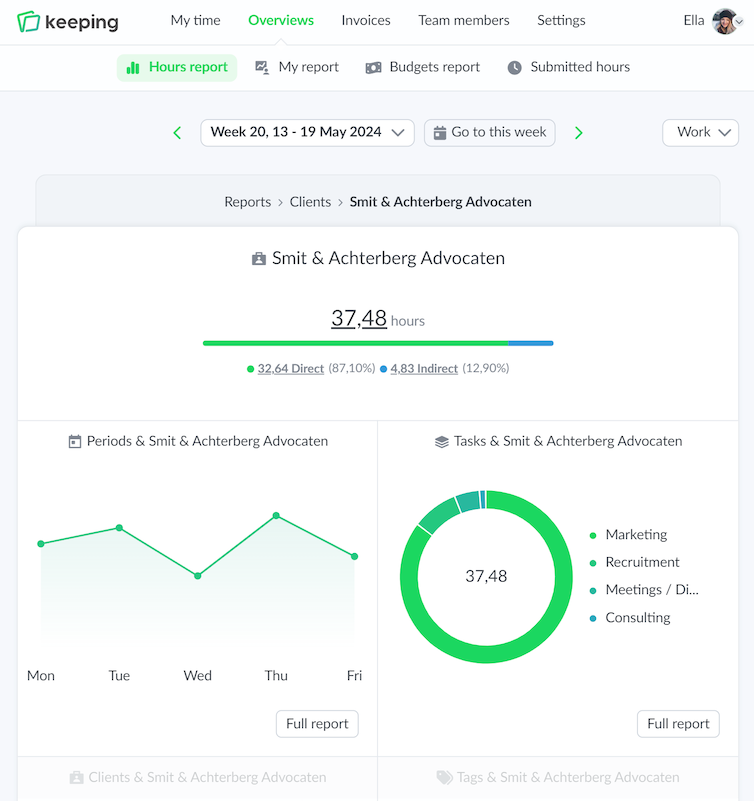
Overview of client report
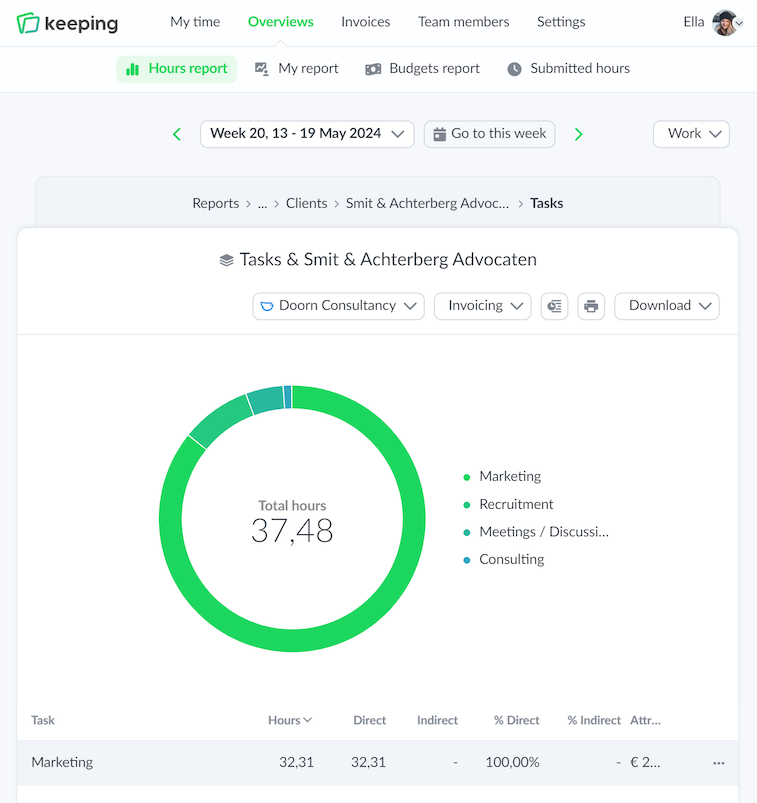
Overview of tasks reports
Overview of time tracking specifically set for hours per task

Reports

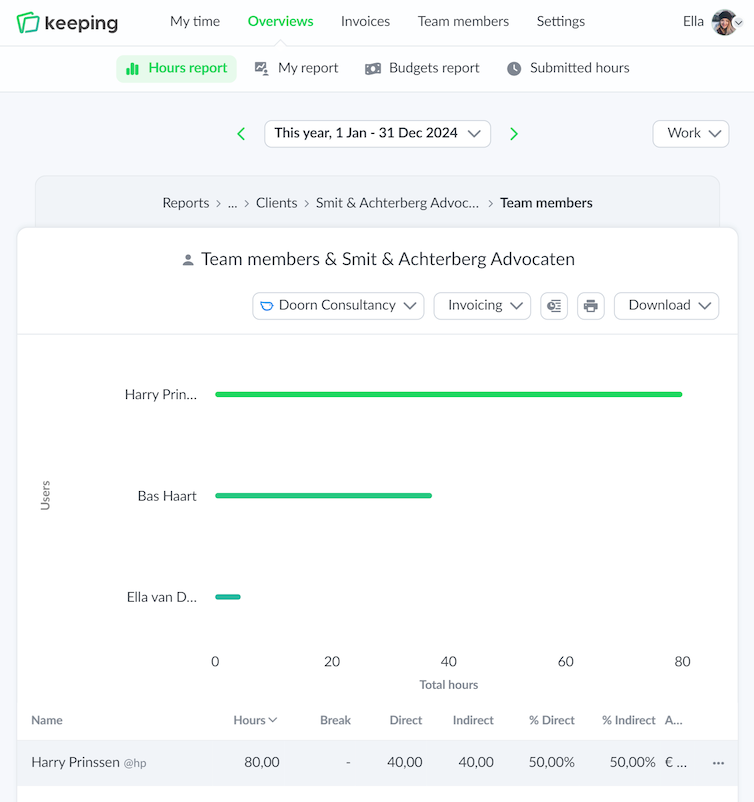
Team member report

With the team member report, you can easily see the hours worked by the team. In addition to providing an overview of the relationships within the team, you can also click on each team member to analyze what they have worked on. This overview can be downloaded as a document.

A distinction can be made between direct and indirect hours, allowing for clear insight into the efficiency of each team member.

If you are using teams, there is also a team report available.

  • Dashboard with team report; All hours of the team in one overview.
  • Detailed ratios of direct and indirect hours; Direct (financial) insight.
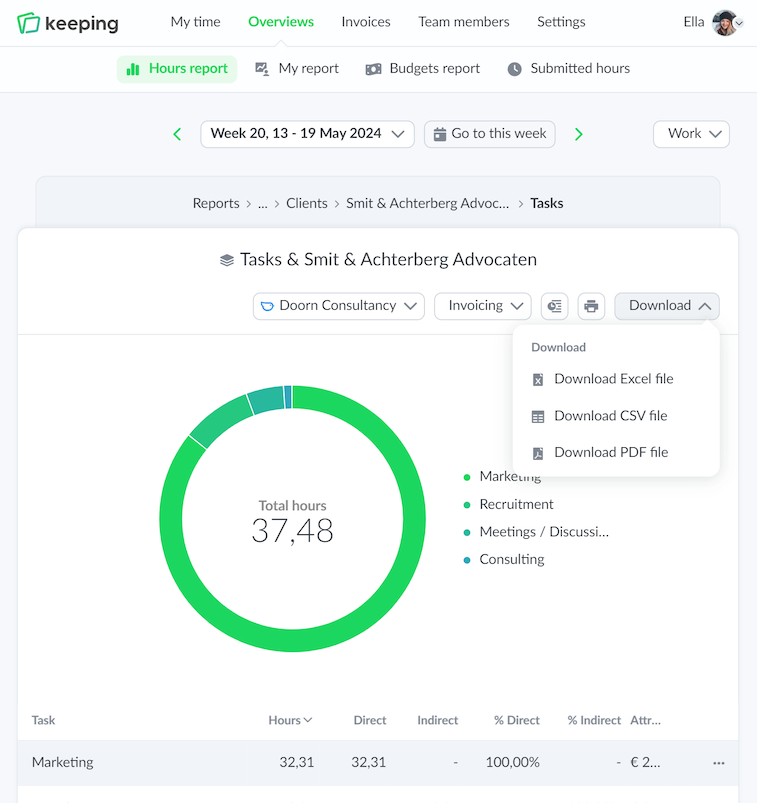
  • Export to PDF, Excel, or CSV files; Easily share reports with the team.

Improve your time tracking with Keeping

Starting with Keeping is free. Discover it yourself.

Stopwatch to clock hours illustration

Reports

Task report

When working with tasks, you can view how many hours have been worked per task through the task report. By using tasks, you can add more detail to tracking hours. The task report can be downloaded in various formats for sharing purposes.

From the task report, you can easily create an invoice.

Additionally, a distinction can be made between direct hours, such as client work, and indirect hours, such as internal meetings. The ratios of these can be found in the report.

  • Dashboard with task report; With all tracked hours per task
  • Detailed ratios of direct and indirect hours; Direct (financial) insight.
  • Export to PDF, Excel, or CSV files; Easily share reports with the team.
Overview of time tracking specifically set for hours per task

Reports

Underlying entries

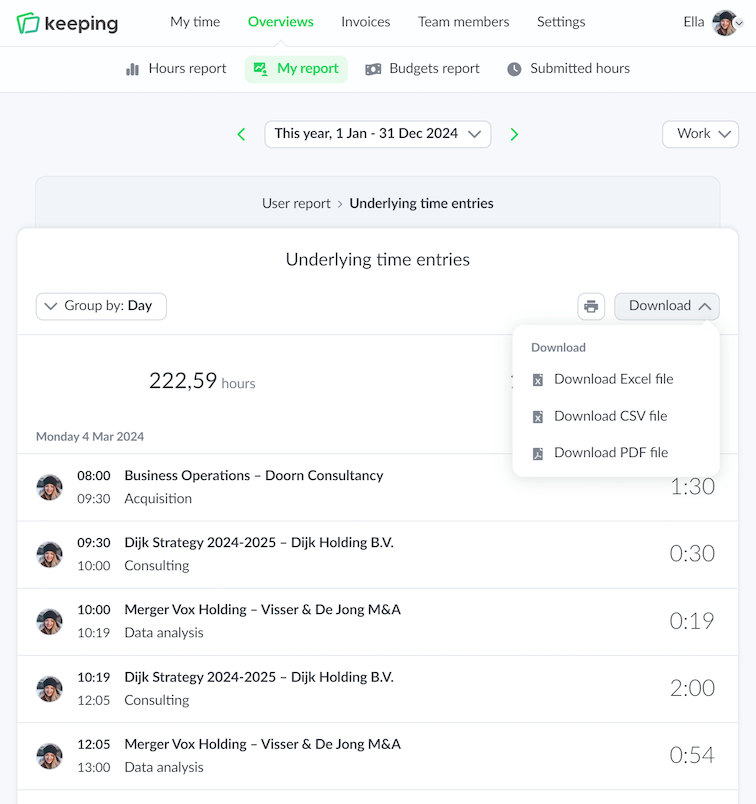
To really know where the hours are spent, you can click through to the underlying entries from any report (project report, task report, client report, etc.). This report shows the exact hours.

This overview can be downloaded in an export. Additionally, you can click through to the timesheet to view the time registration for the respective day.

  • Overview with underlying time registrations; Know exactly where the hours are spent.
  • Export to PDF, Excel, or CSV files; Easily share reports with the team.

Pro Financial

Budget report

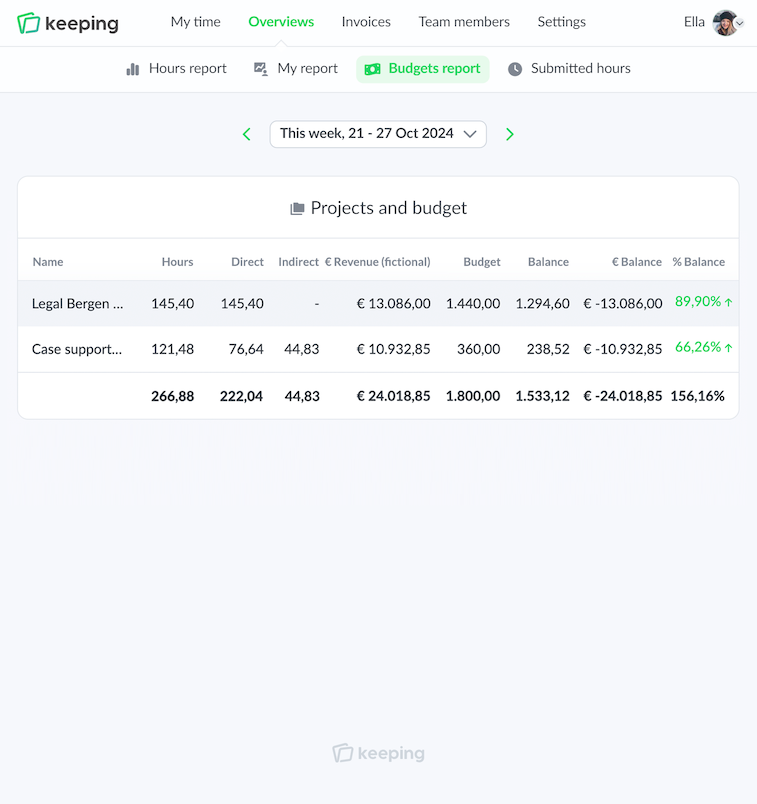
Within the reports, there is a budget report, which provides a clear view of the (fictitious) revenue based on the entered rates and hours. With these insights, you can make adjustments within your organization where needed.

A distinction can be made between direct and indirect hours, allowing for clear insight into a team member's efficiency.

The rates used for these reports can be set separately at the client, project, and task levels. It is also possible to add changes to the rate. This allows calculations to be made using the rate that was in effect during a specific period.

  • Direct (financial) insight via rates; Clear (fictitious) revenue based on the rates
  • Adjustments based on the budget report; More insight into your organization allows for adjustments.
Overview of budget report
Overview of client report