Maintain overview and structure

Maintain overview.
Edit the structure so it fits your organisation.

Set up your timesheet for Keeping so it flawlessly connects to the workflow within your organisation.

Flexible and editanle

Clients, projects and tasks

Do you or your organisation work with projects? This means you can easily set up your timesheet with clients, projects and tasks. if neither do, you can simply deactivate this setting and your organisation can work using tasks and/or labels (tags).


Graphical character that supports head-image

Pro Flexibility

More depth with tags

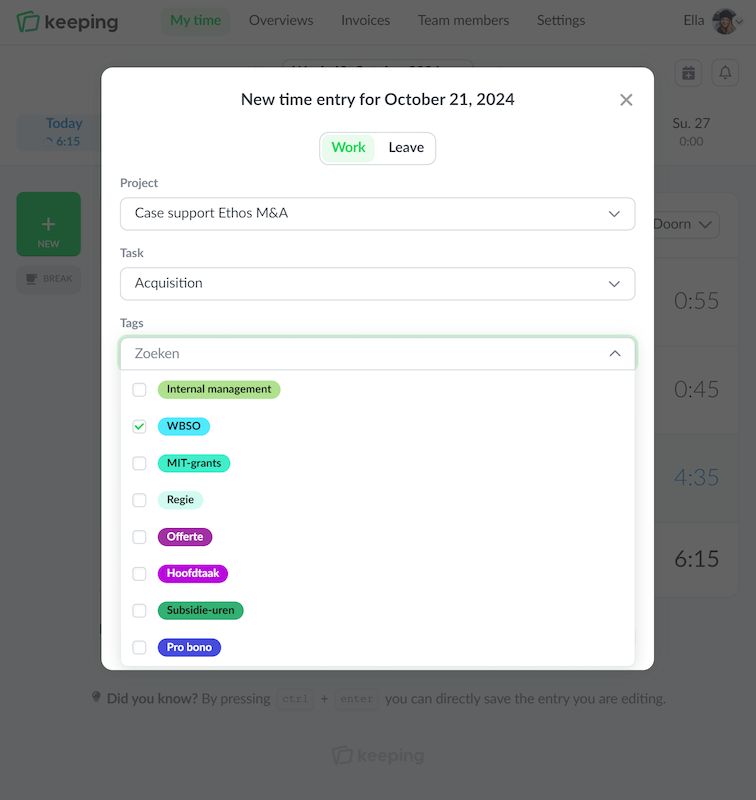
Tags are project and task overruling and can help with obtaining new insights hours that aren't bound to projects or tasks. For example, think about tagging "tax credit hours" or a specific part of a project which consists of multiple tasks.

Tacking hours

The variable timesheet

Using Keeping is all about tracking your work hours. You can do this in two ways: Accurately per minute in which you can accurately track your hours per minute or accurately per day, in which hours can be registered afterwards.

Tacking hours

Breaks

By starting to track breaks, you can gain insights into how many hours were spent on breaks compared to the total time clocked.

Stopwatch to count hours illustration

Flexible and editable

Clients, projects and tasks

When you or your organisation works with projects, you can use tags with projects and tasks, which gets you a more in depth insights in your tracked hours. Even when you're not working with projects, tags could be ideal to get more insights and structure within your hours.

You can specify the tracked hours with tasks. Then a team member can track different task hours per project. It's possible to attach tasks to projects. You can get better insights in the activity across all projects via the reports.

Even when you're not working with tasks, you could disable this feature and you can work with projects and tags alone.

  • Real time overview in a diverse range of dashboards; Overview of all activities and clients, tasks and projects
  • Turn projects on and off for clients; Utilize projects when your organisation works with projects
  • Turn tasks on and off; Get better insights in activities by dividing them in tasks.
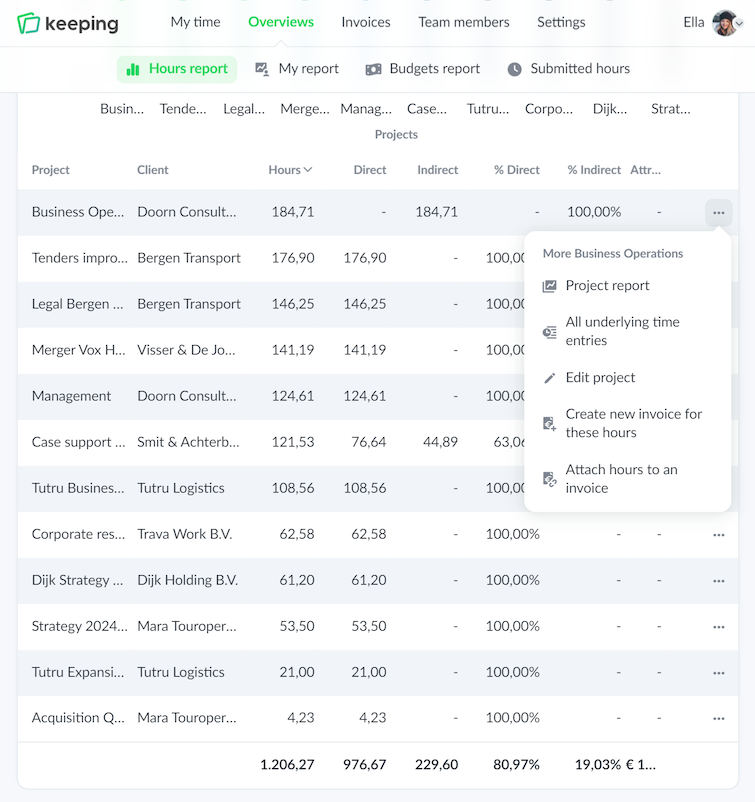
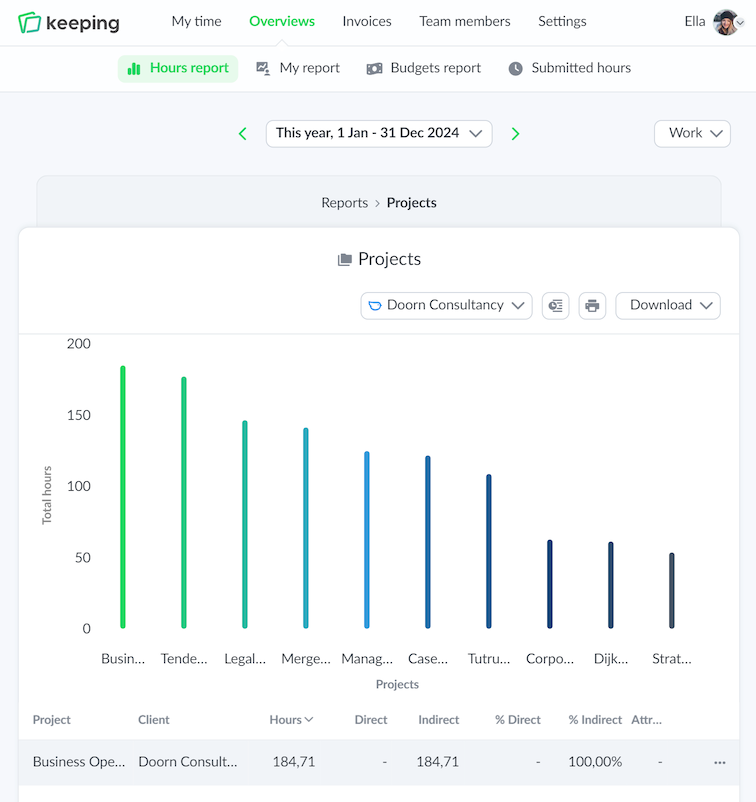
Overview of time registration specifically set to hours per task
Start a new time entry with tags
Overview of time entry specified on hours per task

Pro Flexibility

Add nuance with tags

Tags are project and task overruling and can help with obtaining new insights hours that aren't bound to projects or tasks. For example, think about tagging "tax credit hours" or a specific part of a project which consists of multiple tasks.

When you or your organisation works with projects, you can use tags with projects and tasks, which gets you a more in depth insights in your tracked hours. Even when you're not working with projects, tags could be ideal to get more insights and structure within your hours.

  • Project and task overruling usability; More insight into non-project or task-related hours.
  • Zoom in further on projects or tasks; A refined specification of your hours

Start today and customize Keeping so it fits your workflow perfectly!

Keeping is free to try without any restrictions for the first 14 days.

Stopwatch to clock hours illustration

Tracking hours

The dynamic timesheet

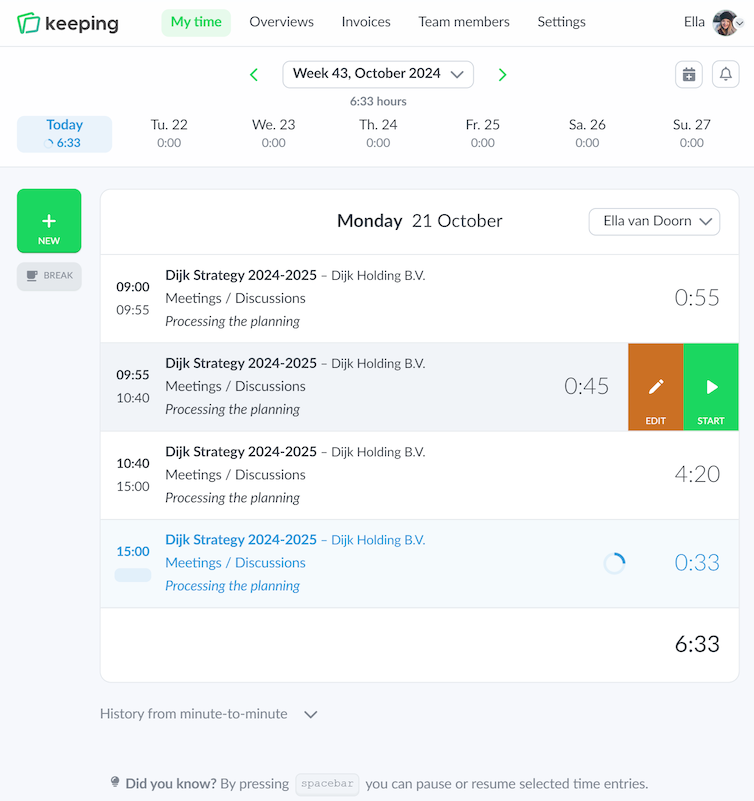
Not everyone tracks their hours in the same way. With Keeping we offer different ways to track your hours: per minute or per day. Whenever you want tot track your hours per minute, you can enter a start and end time. Because of this you get a very accurate hour registration. Do you work on a variety of projects and tasks every day? Then you can easily create sequenced time registrations; Keeping records the end time of the previous registration and applies this as the start time for the next.

Is it nicer to add your hours afterwards, then choose to add hours per day. Using this method you can enter hours with a single set of digits. With both of these ways you connect the time registration with a project, task or tags, depending on how you designed your workflow.

  • Enter time registration per minute; Accurate time registration sequenced time entries
  • Enter time registration per day Simply enter time registrations as time blocks (afterwards)
Overview of time registration specifically set to hours per task