Manage projects and budgets

More control over your projects and budgets with extensive reports from Keeping.

An important aspect of good project management is keeping track of the time recorded. You need up-to-date information to make important decisions. Keeping helps you maintain overview.

Pro Smart Budgets

Stay within budget with project budgets

Nothing is more frustrating than work going over budget.
With the project budgeting of Keeping, you can easily keep track of a project's budget.

Additionally, you can associate rates with these budgets, allowing you to maintain not only a budget based on hours but also a financial overview.


Graphic character supporting the main image

Useful Reporting Dashboards

Zoom in on hours

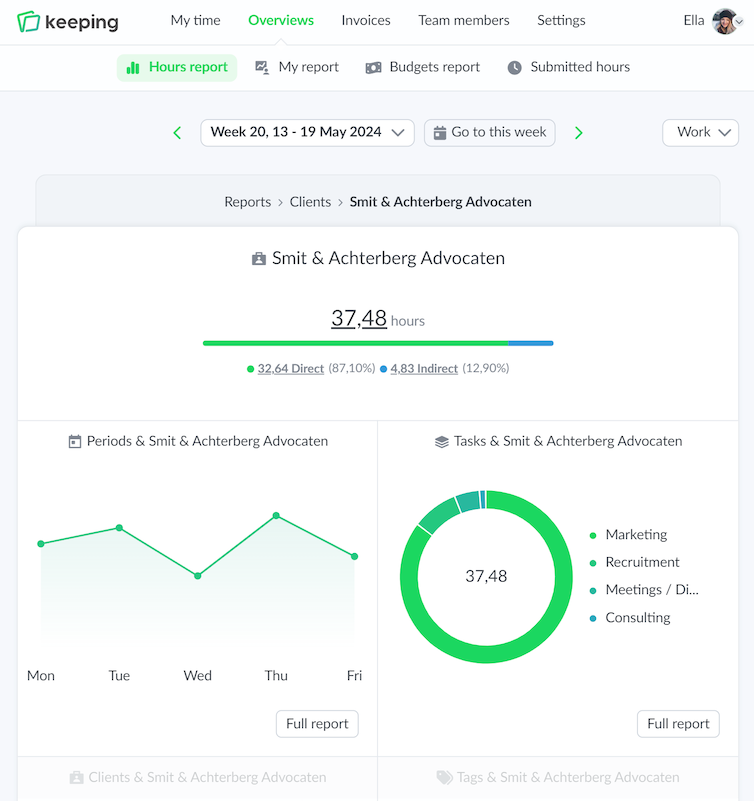
With the extensive reporting dashboards of Keeping, you can zoom in on the hours. You can intuitively navigate from a broad report to a specific one.

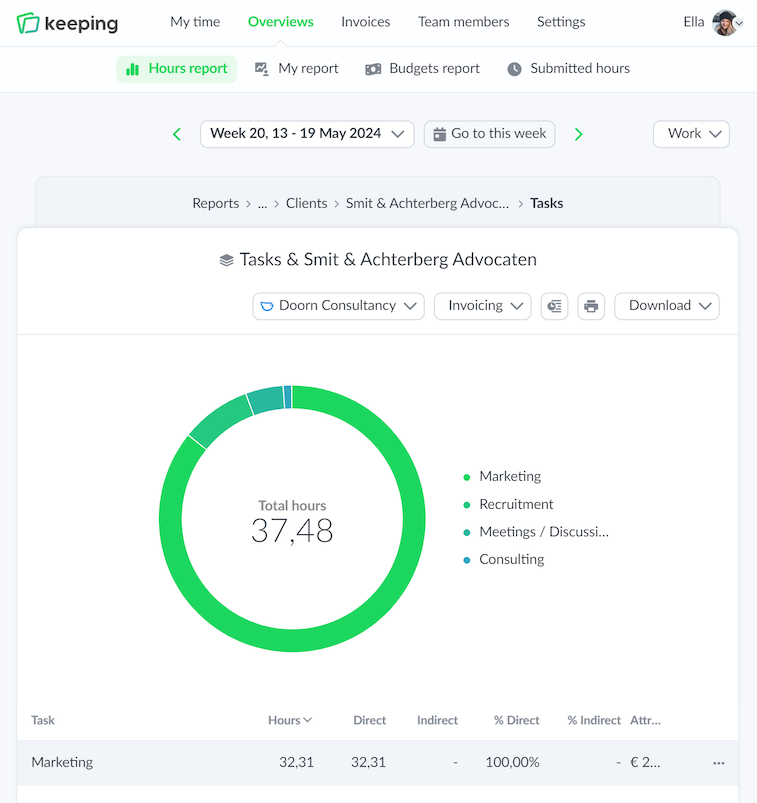
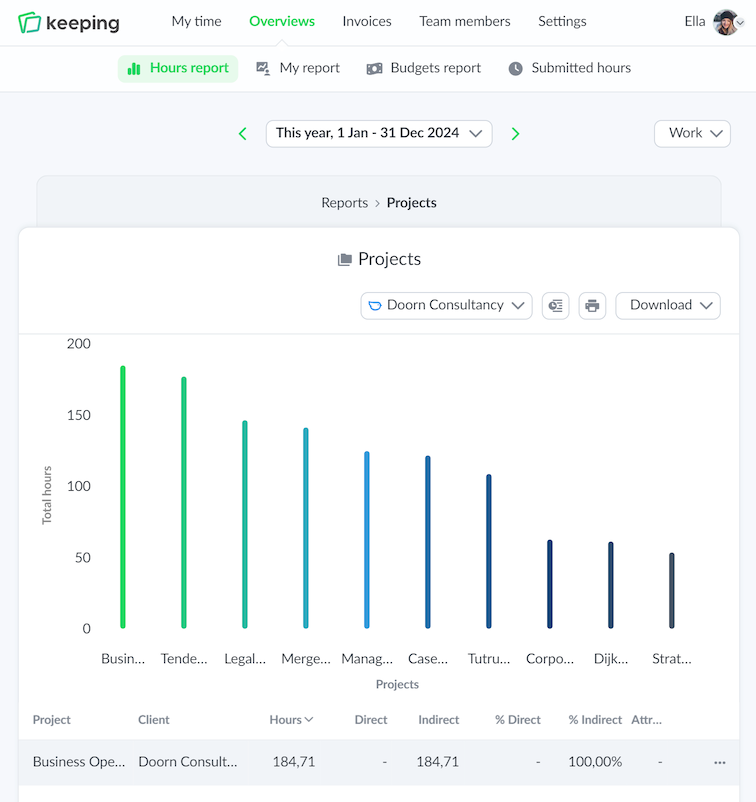
Depending on how you've set up your workflow, reports are available per client, project, task, team member, tag , and integration.

Flexible and Customizable

Projects, Tasks and Tags

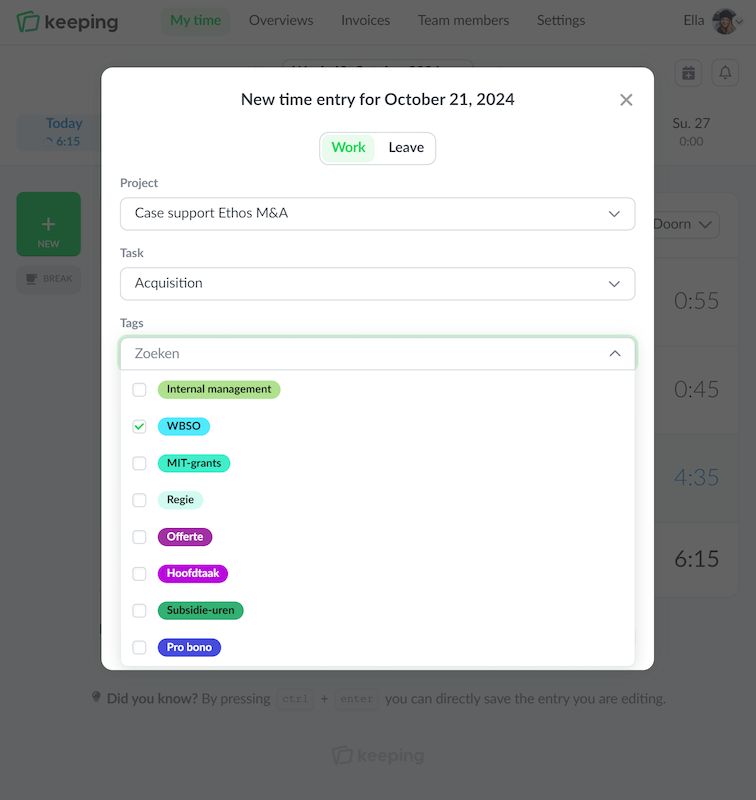
Time tracking can be done with projects, tasks and tags . Tasks are an (optional) subdivision of projects. Labels can be flexibly linked to any time registration, independent of tasks or projects.

Tags can therefore relate to multiple projects or tasks and are thus overarching, providing more depth in the reports.

Stopwatch to count hours illustration

Pro Smart budgets

Stay within budget with project budgets

In addition to gaining more insight into hours, you can also set a project budget with Keeping. This budget can be based on hours and can be used in three different ways: per month, per year, total hours. Through the reporting dashboards, you can see immediately whether the hours fall within or exceed the budget during the period.

If desired, it is possible for an administrator to receive an email notification when the budget is exceeded.

  • Set budgets in various ways; Set the budget per month, per year, or with a total number of hours.
  • Clear insight into budgets; Insight via the reporting dashboards.
  • Notification upon exceeding; Optional email notification when exceeding the budget.
Overview of time registration specifically set to hours per task
The team overview of Doorn Consultancy, for example, to view the hours of a team member
Overview of time registration specifically set for hours per task
Overview of time registration specifically set for hours per project

Useful reports dashboards

Zooming in on hours

Keeping offers comprehensive reporting dashboards that allow you to zoom in on tracked hours. Depending on the chosen settings that align with your workflow, reports can be generated per client, project, task, team member, tags, and integration. You can supplement these reports with project budgets, so you can see at a glance whether a project stays within budget.

Additionally, these budgets can be linked to rates, allowing you to maintain a financial overview alongside a time budget.

  • Zoom in on Specific Reports; Intuitively click through from report to report.
  • Immediate (financial) insight via project budgets; Recognize budget overruns at a glance.
  • Export to PDF, Excel, or CSV Files; Share reports easily with the team.
  • Manage Access to Reports within Your Organization; Restrict access to parts of the team when necessary.
  • Personal Report for Every Keeping User; Always up to date.

Start usingKeepingtoday, and gain more control over projects and budgets!

For the first 14 days Keeping is free to try out without any restrictions.

Stopwatch to clock hours illustration

Flexible and adaptable

Clients, projects, and tasks

If you or your organization work in a project format, you can set up Keeping so that team members can track hours on projects. Each project is linked to a client, giving you insight into your activities through the reports.

Additionally, you can clarify your hours by working with tasks. A team member can track hours on different tasks (for each project). Since tasks can be linked to multiple projects, you ultimately gain more insight into activities across all projects via the reports.

If you or your organization do not work with projects, this module can be deactivated, and you can work with tasks or tags.

  • Enable or Disable Projects for Clients; Use projects when you work in a project format.
  • Enable or Disable Tasks; Gain more insight into activities by breaking them down into tasks.
  • Real-Time Overview in Various Reporting Dashboards; Overview of all activities for clients, projects, and tasks.
Overview of time registration specifically set for hours per task
Start a new time registration with labels
Overview of time registration specifically set for hours per task

Pro Universal

Deeper dive into your time with tags

When you or your organization do not work in a project format but still want to gain more structure in tracking hours, you can work with tags (tags). Tags can also be used in conjunction with projects and tasks for organizations that do work in a project format, allowing you to delve deeper into the hours.

Tags are project- and task-overarching and can contribute to new insights from non-project or task-related hours. For example, consider tagging "WBSO hours" or a specific part of a project that spans multiple tasks.

  • Zoom in on projects or tasks; A finer specification of hours.
  • Overruling of projects and tasks More insight into non-project or non-task-related hours.

Do you keep track of your time well?

Keeping is free without any restrictions for the first 14 days.

Stopwatch to clock hours illustration