Connect API with Microsoft Power BI
Note: Power BI Desktop is required to create this connection.
Note: This support page assumes that you have some API knowledge to configure the connection as desired. You can consult our API documentation here.
Step 1: Create a personal access token in Keeping
To connect to the Keeping API, you need to register a personal access token within Keeping. You can do this by navigating to My Account > Access tokens. If you do not see Access tokens in the account menu, you need to enable developer features under My Account > Preferences.
Go to My Account > Access tokens and create a new token via the New access token button. Give this token a name and select all scopes. After creation, the token will be shown once only, so make sure to save it somewhere.
The token is valid for 1 year and can be revoked from the tokens overview.
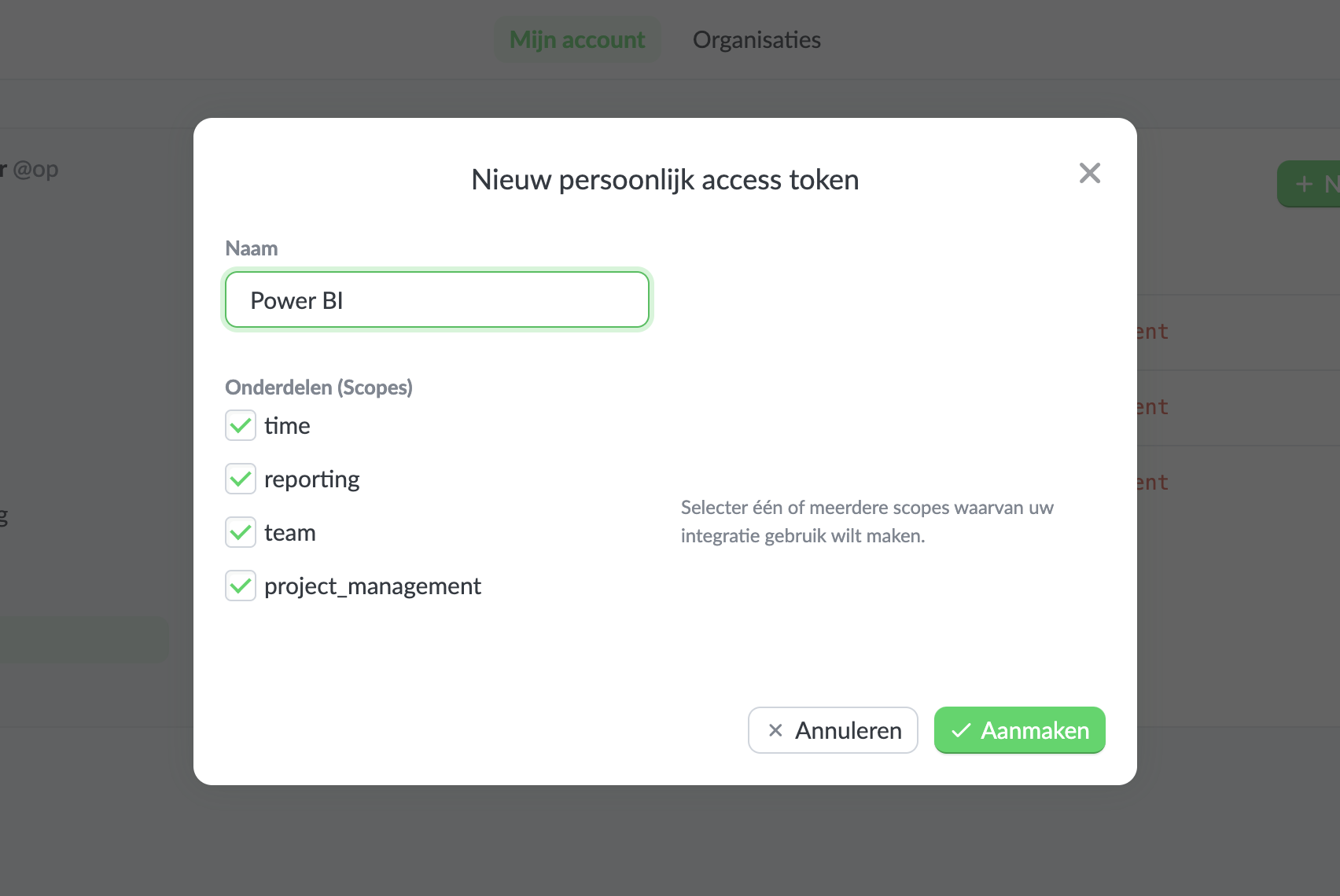
You will use this token within our API in the Authorization header.
Step 2: Retrieve data via the API
The Keeping API has several endpoints to retrieve, for example, report data. In this example, we use a report for projects, but the API has different types of reports. For all information, consult the API documentation.
As an example, we will use the following API endpoint:
https://api.keeping.nl/v1/{organisationId}/report?from=2024-01-01&to=2024-12-31&row_type=project
In this URL, {organisationId} is the ID of the organisation you want to connect to.
You can retrieve the IDs of your organisations via the API by making the following request:
curl -XGET https://api.keeping.nl/v1/organisations -H "Authorization: Bearer {your access token}" -H "Accept: application/json"
Step 3: Use the API within Microsoft Power BI
To retrieve data via the API, you need to use the Web connector within Power BI.
In this connector, you enter an endpoint (with the filled in {organisationId}) in combination with the Authorization header.
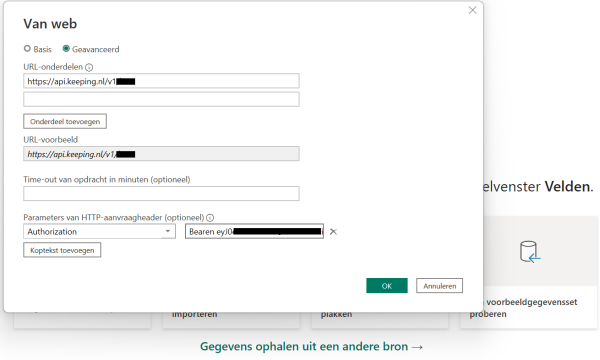
You can now add different API endpoints to process them within Power BI.