Set up two-step verification
Want to add an extra layer of security to your Keeping account? You can do so with two-step verification. This requires you to enter an additional security code along with your password. This unique security code can only be used once and is generated by an authenticator application such as Google Authenticator, Microsoft Authenticator, 1Password, or one of many others. It’s common to install the authenticator app on your phone, so you’ll need both your phone and laptop to log in. Authenticator apps do not require internet access to generate the code.
To enable two-step verification, navigate to My Account from the user menu. Then go to Security and select Two-Step Verification.
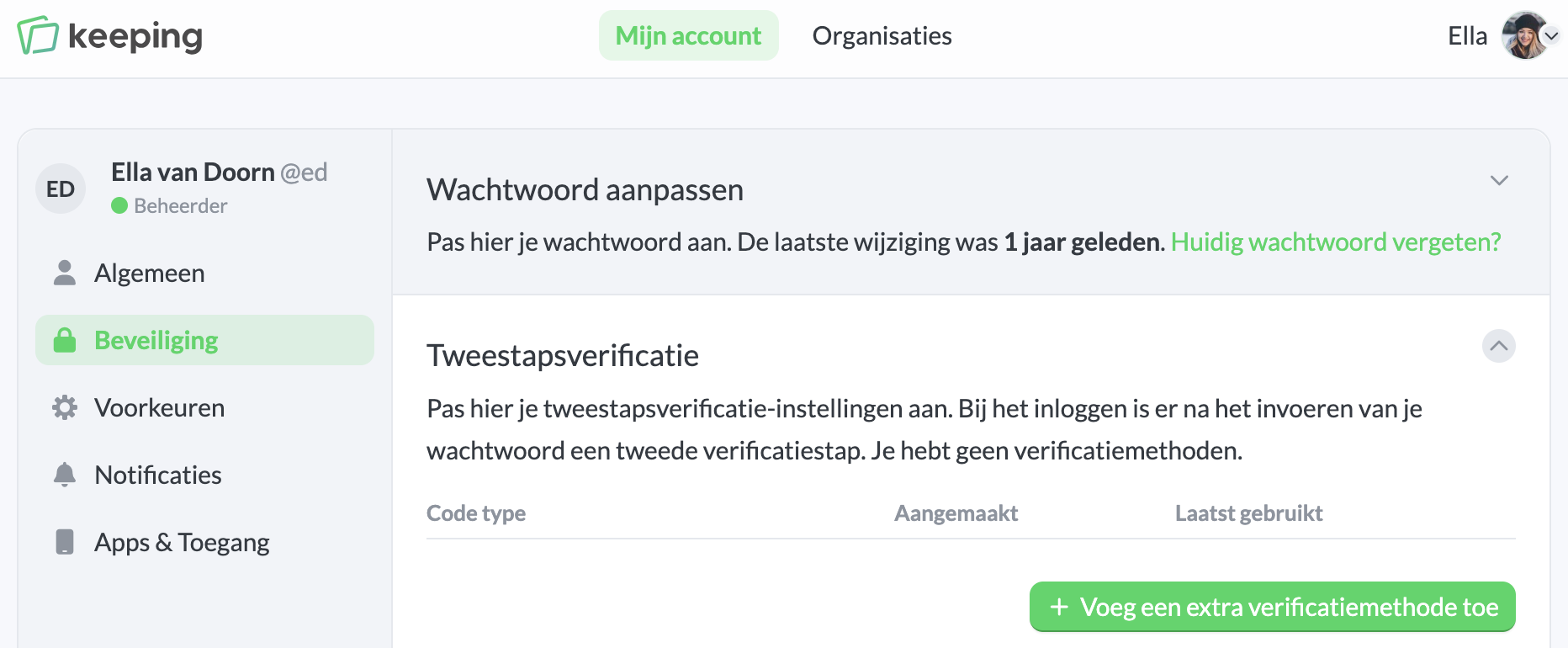
Click on Add an extra verification method. You’ll be prompted to scan a QR code using an authenticator app on your phone.
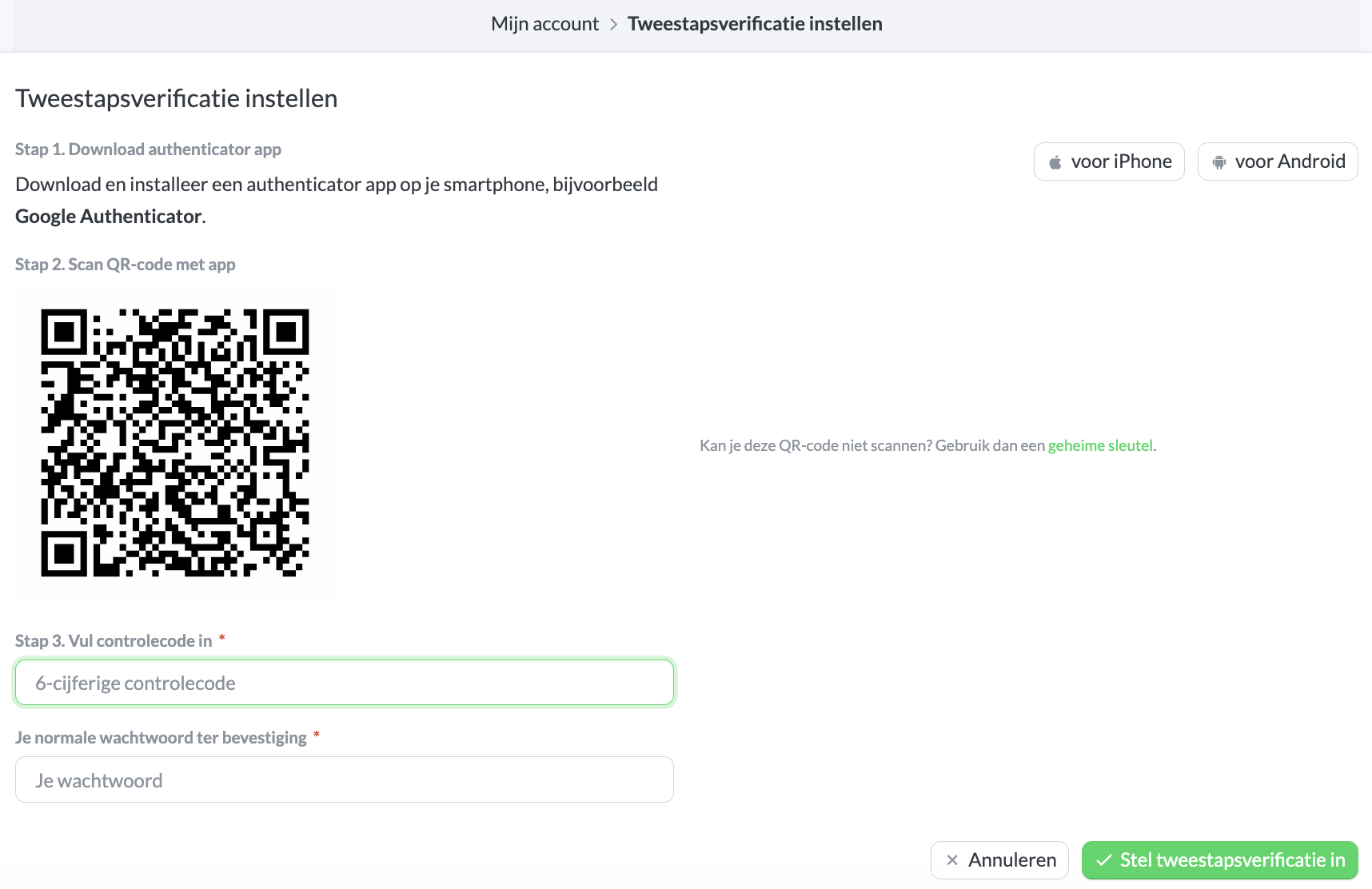
After scanning, the authenticator app on your phone should generate a code. To confirm everything is set up correctly, we’ll ask you to enter the security code and re-enter your password.
Backup Codes
Once we confirm that the entered security code is correct, there is one more step. To ensure you can still access your Keeping account even if you lose your phone, we provide backup codes. We recommend printing these out and storing them somewhere safe. If you ever lose your phone, you can still access Keeping with a backup code.
Each backup code can only be used once. Be sure to set up a new two-step verification method after using a backup code.
Using Two-Step Verification
After setting up two-step verification, you’ll be prompted to enter the security code when logging in. Take the phone you used to set up two-step verification and enter the displayed code. It’s important that your phone’s system time is accurate.
We’ll ask for the two-step verification code when logging in on the website, as well as in the iOS and Android apps.