Import hours from Harvest
It is possible to import hours from another time registration app into Keeping. You can find the import and export features under Settings → Organisation, in the Import and Export tabs.
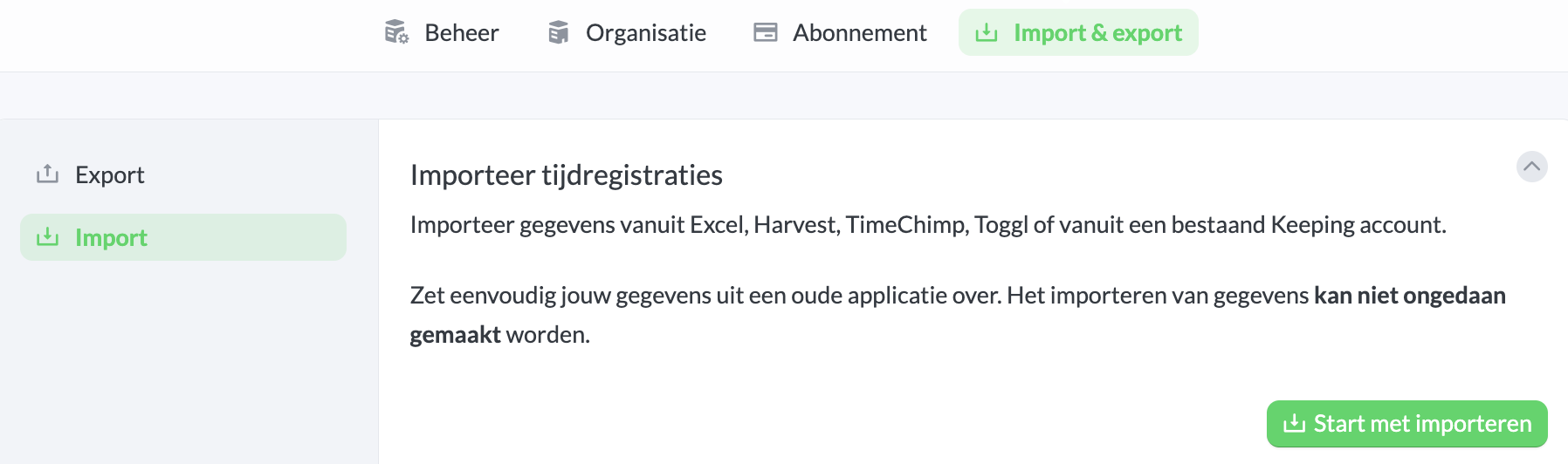
Then go to the Import section and click on Start Importing. Choose the application from which you want to import time registrations.
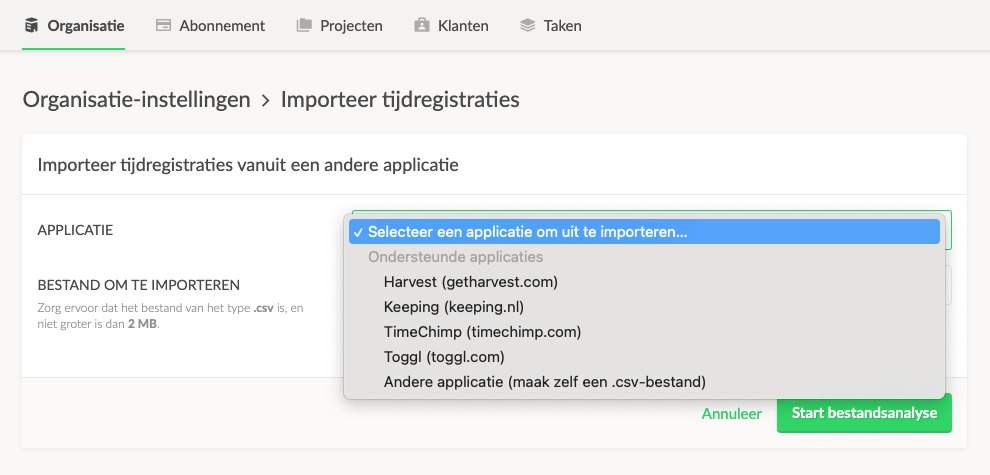
Below is a detailed step-by-step guide for exporting and importing time registrations within Keeping.
Correctly Exporting Time Registrations from Harvest
Below are instructions on how to export data from Harvest to then import it into Keeping. Read here for more information on exporting hours in Harvest.
- Log in to Harvest with the user who is the Account Owner of the organisation.
- Click
Settingsat the top of the menu. - You are now on the "Account Settings" page. Ensure that the settings under Preferences, especially the Timezone, match the preferred settings in the Keeping organisation where you want to import the hours.
- Scroll to the
Export Datasection. Click theExport Time Databutton and save the .csv file with your time registrations.
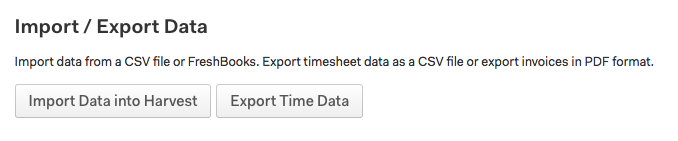
- Now log in to Keeping as the organisation owner or Administrator of the organisation where you want to import your Harvest registrations. Go to the import screen via
Settings>Organisation>Import. - Select the .csv file from Harvest under
File to import. - To proceed, click the
Start File Analysisbutton at the bottom of the Import page. Pressing this button does not start the import immediately. We will first perform an analysis. Upon a successful analysis, we will show you some details first, allowing you to decide whether you want to import the data.