Import hours from Toggl
It is possible to import hours from another time registration app into Keeping. You can find the import and export features under Settings → Organisation, in the Import and Export tabs.
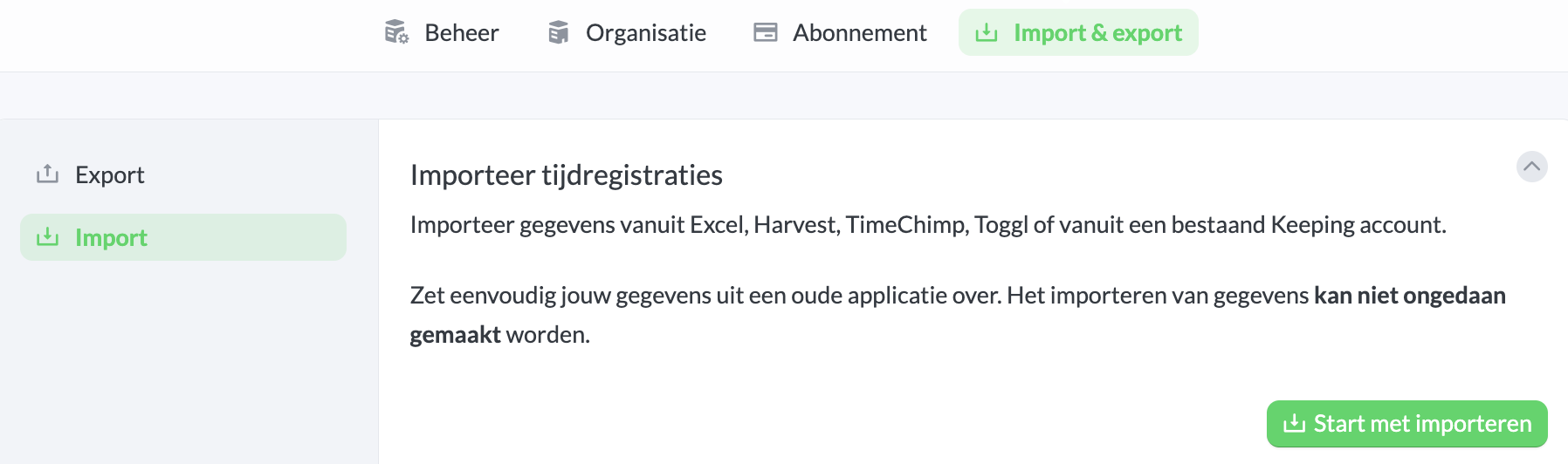
Then go to the Import section and click Start Importing. Choose the application from which you want to import time registrations.
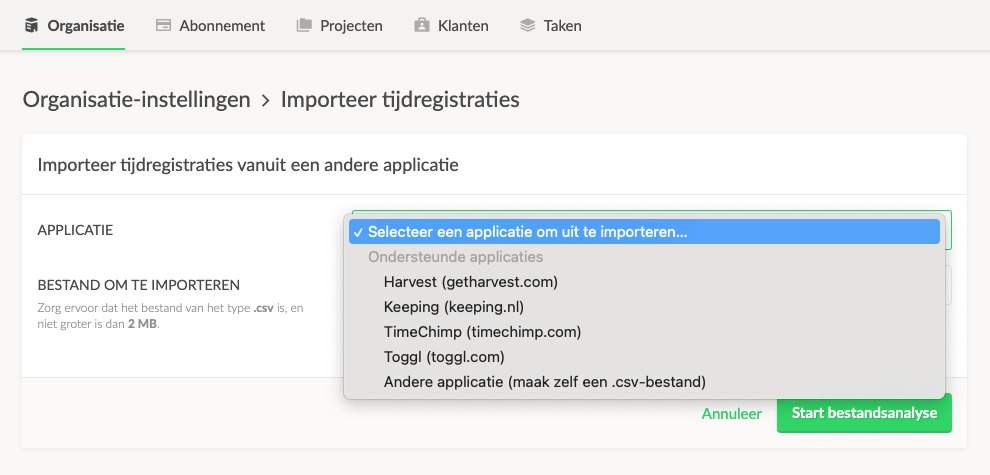
Below is a detailed step-by-step guide for exporting and importing time registrations within Keeping.
Correctly Exporting Time Registrations from Toggl
Below are instructions on how to export data from a Toggl workspace to then import it into Keeping. In Toggl, you can export no more than one year of data at a time. Therefore, it is necessary to import multiple times if you have more than one year of data. Read here for the Toggl manual on exporting time registrations.
- Log in to Toggl as a team member with Admin access for the workspace.
- Click on your name in the menu and then on
Profile settings. Ensure that the preferred settings on the "My Profile" page match the preferred settings in your organisation in Keeping, particularly the Timezone. - To proceed, click on
Reportsat the top of the menu and then onDetailed. You are now on the "Detailed Report" page. - Select the period you want to export by clicking on
This week. This period cannot exceed one year. If you want to export more, you can repeat this procedure for different years.
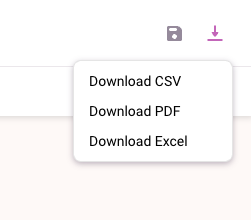
- Download a .csv export file by clicking
Exportand thenDownload as csv. - Now log in to Keeping as the organisation owner or Administrator of the organisation where you want to import your Toggl registrations. Go to the import screen via
Settings>Organisation>Import. - Select the .csv file from Toggl under
File to import. - To proceed, click the
Start File Analysisbutton at the bottom of the Import page. Pressing this button does not start the import immediately. We will first perform an analysis. Upon a successful analysis, we will show you some details first, allowing you to decide whether you want to import the data.