Create task
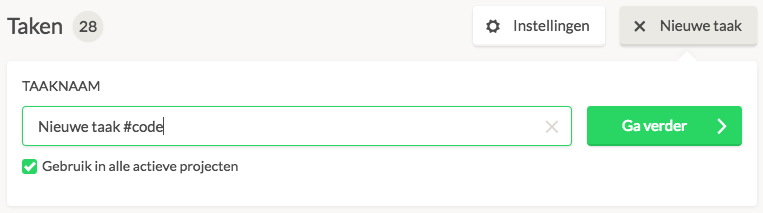
As an Organisation Administrator, you can create a new task via Settings → Manage → Tasks using the green 'New Task' button. Creating a task is quick and simple. Type the name of the new task in the window, and click on Create Task. You have now created a new task. You can choose to create a task as a Standard Task, which means the task will automatically be assigned to all active and new projects. You can also attach a Unique Reference to a task. When creating it, type the task name first, followed by #desired task code. If this unique reference is provided, it can be found throughout the application (for example, #ADM for 'Administration'). When creating a time registration, the task can then be quickly found by searching for the unique reference.
There are various other places where you can easily and quickly create a new task, including in the overview of linked tasks to a project and when entering a new time registration. If you want to create a new task there, you will go into a separate screen. You can also access this detailed screen via Settings → Manage → Tasks, using ctrl / ⌘ and clicking on + New Task.
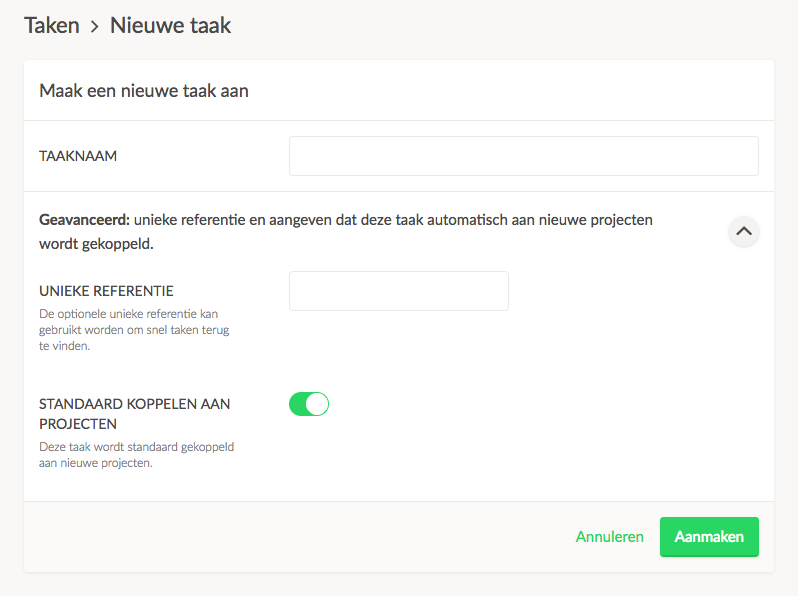
Using projects? When creating a task, you can choose to add the task at once to all your active projects. If you check this option, the task will be immediately available, and it will also be automatically added to new projects. If you do not enable this option, you will not be able to start logging time on this task immediately. First, link the task to a project.