Project budgeting with hours
Using an Hourly Budget Within Projects
When using projects, you can set a budget for the maximum number of hours allowed to be logged on each project. This budget can be used in three different ways: per month, per year, or total hours.
To set this up, navigate to Settings > Manage > Projects and edit the settings for the specific project.
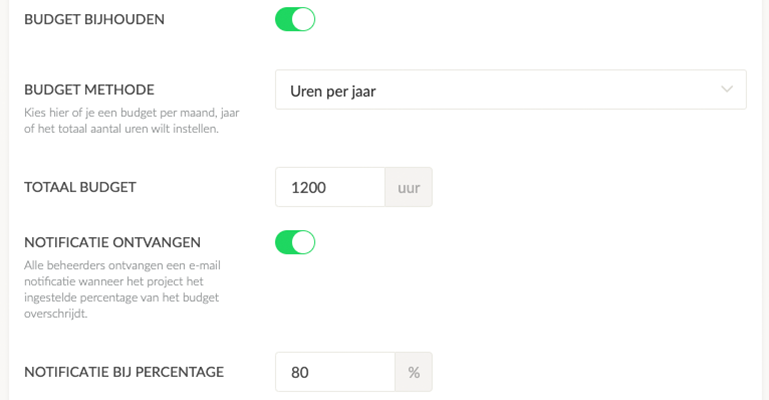
In the settings, you’ll see the budget options after selecting Track Budget.
Email Notification for Exceeding the Budget
If desired, it is possible as an admin to receive an email notification when the budget is exceeded. This can be enabled by selecting Receive Notification and setting a percentage of the budget.
- For a monthly budget, you’ll receive 1 notification per month;
- For an annual budget, 1 notification per year;
- For a total budget, you’ll receive a single notification.
Relation to Reports
When using the new reports, the budget will be visible for a project. The selected interval under budget method in the budget settings will be taken into account.
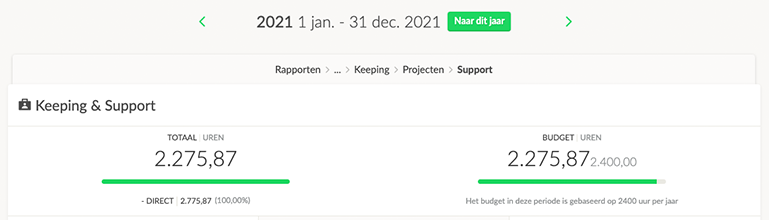
In the project report view, you can see the budget for the selected period if it has been set.
Below are three simple examples:
Budget per Month
The budget for a project is set to 20 hours per month. In the report, I am viewing a quarter. Therefore, the budget for this period is 20 x 3 = 60 hours.
Budget per Year
The annual budget for a project is set to 2,400 hours. In the report, I am viewing a month. Therefore, the budget for this period is 2,400 / 12 = 200 hours.
The annual budget for a project is set to 2,400 hours. In the report, I am viewing a year. Therefore, the budget for this period is 2,400 hours.