Turn breaks on and off
To use breaks, you need at least Keeping Plus.
Keeping offers the option to record breaks separately. When breaks are enabled, you can include breaks when logging your hours, and breaks will be displayed separately in reports. Breaks are not counted as work time, but you can still view them separately. They cannot be used for invoicing.
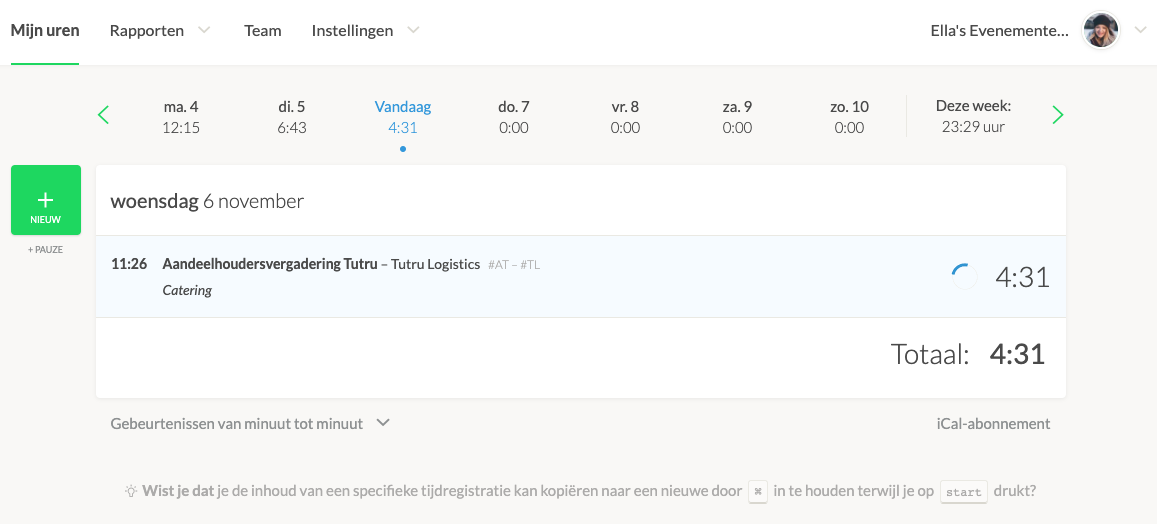
Enabling Breaks
As an Organisation Administrator, you can enable breaks by going to Settings → Features → Workflow and selecting Enable Breaks. This adds more detail to time entries, allowing you to easily distinguish between billable and non-billable hours. When you enable breaks, an extra button will appear on your time tracking overview screen.
Note! After clicking the green button, an intermediate window will appear. Click the green Enable Projects button again to enable projects.
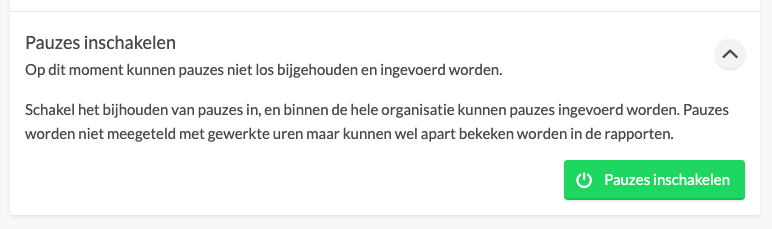
This is where you enable breaks in the Settings menu.
Disabling Breaks
As an Organisation Administrator, you can disable breaks by going to Settings → Features → Workflow and selecting Disable Breaks. This simplifies time entry. Team members will no longer be able to use Keeping's break feature, and breaks will no longer appear by default in reports. Previously recorded breaks will be retained but can no longer be edited.
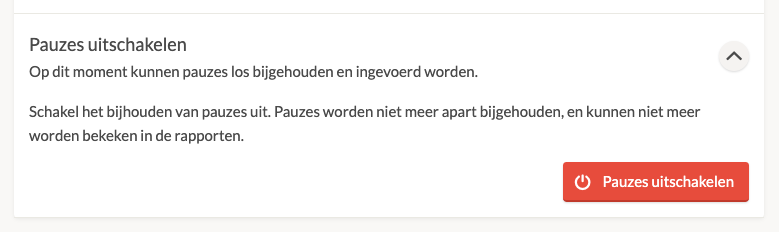
This is where you disable breaks in the Settings menu.