Time registrations in Google Calendar
To link your time entries to your calendar, you need at least a Plus subscription.
This support article assumes the web version of Google Calendar, available at calendar.google.com.
View Your Time Entries in Google Calendar
Open Keeping and go to My Hours.
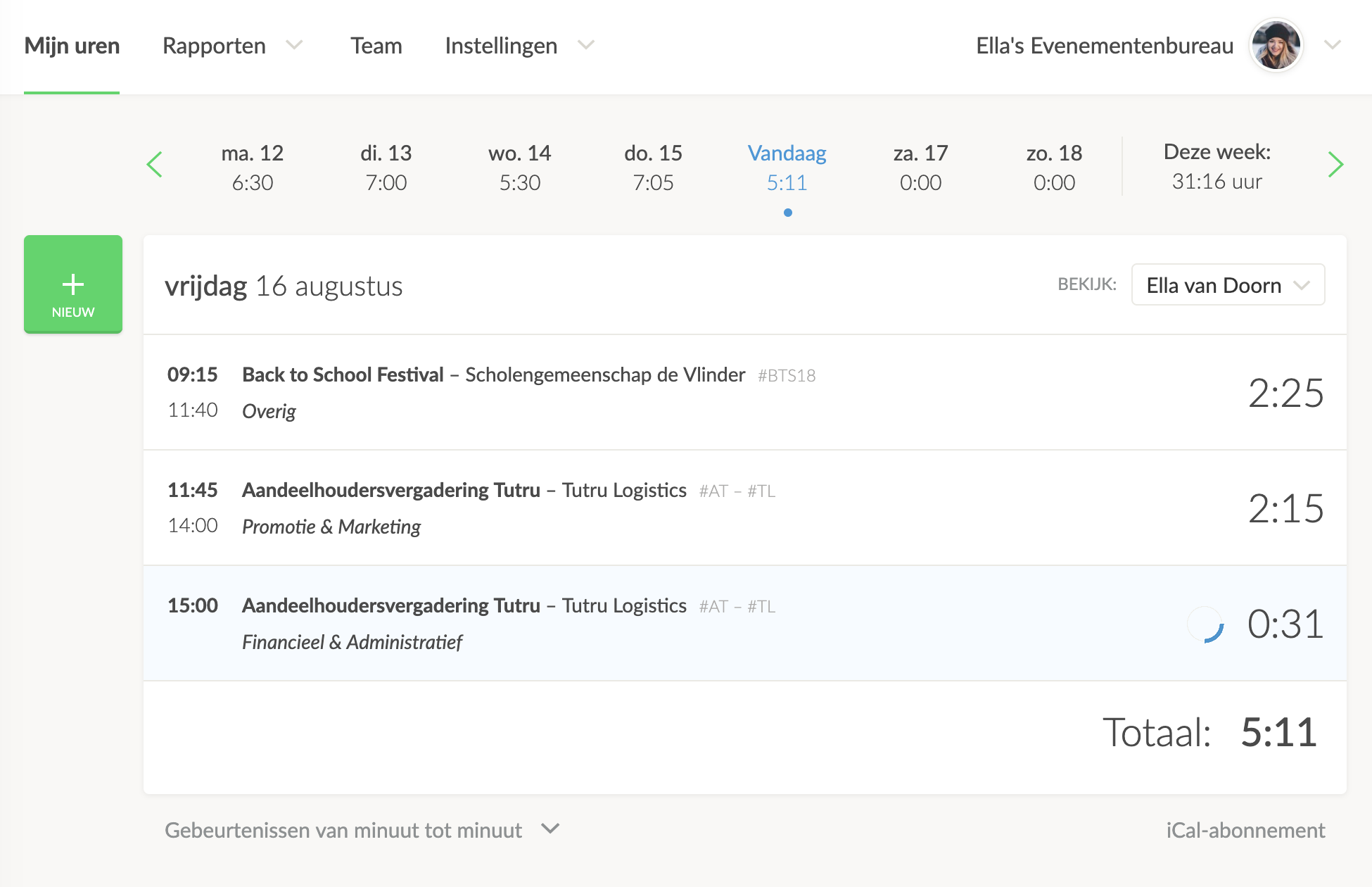
Above your hours overview, you’ll see the iCal Subscription button on the right side, next to the push notifications button.
Copy the Calendar Integration Link
Using the right-click button on your computer or laptop, you can copy the calendar link address.
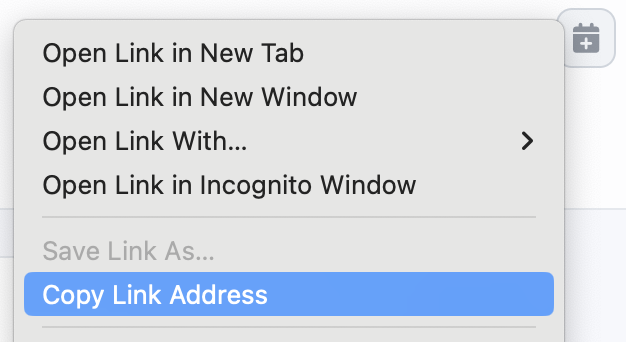
Click on Copy Link Address
NOTE: The link you just copied is your personal hours link. Ensure that this link is known only to you. Anyone with this link can import your hours into a calendar application in the same way.
Open Your Google Calendar
Navigate to Add other calendars by clicking the gray + button in Google Calendar.

Then click on Subscribe to calendar.
Subscribe via URL
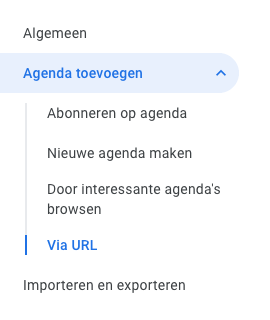
Since you are using a URL, go to the From URL tab in the sidebar.
Paste the URL in the Field
Paste the link you copied from Keeping into the Calendar URL field.
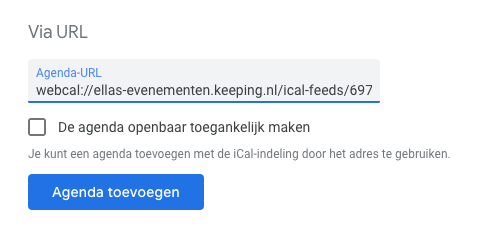
Then click on the Add calendar button.
Your Keeping time entries will now be automatically forwarded to your Google Calendar. Google Calendar refreshes the calendar automatically "every few hours," so you don’t need to do anything further.