Everything You Need to Know About Overtime
Sometimes, an employee may need to work overtime, exceeding the hours specified in their contract. It might be to complete an urgent task or to cover for sick colleagues. It’s important to keep track of the overtime hours worked by an employee. You can also use Keeping to log overtime, keeping everything organized.

What is Overtime?
When starting a new employment relationship, an employment contract is signed that specifies the fixed working hours of an employee. If overtime is worked, it’s helpful for both the employee and employer to track it. Currently, Keeping doesn’t have a specific feature for tracking overtime. In this blog, we’ll share tips on how you can manage overtime tracking with Keeping.
Tracking Your Time
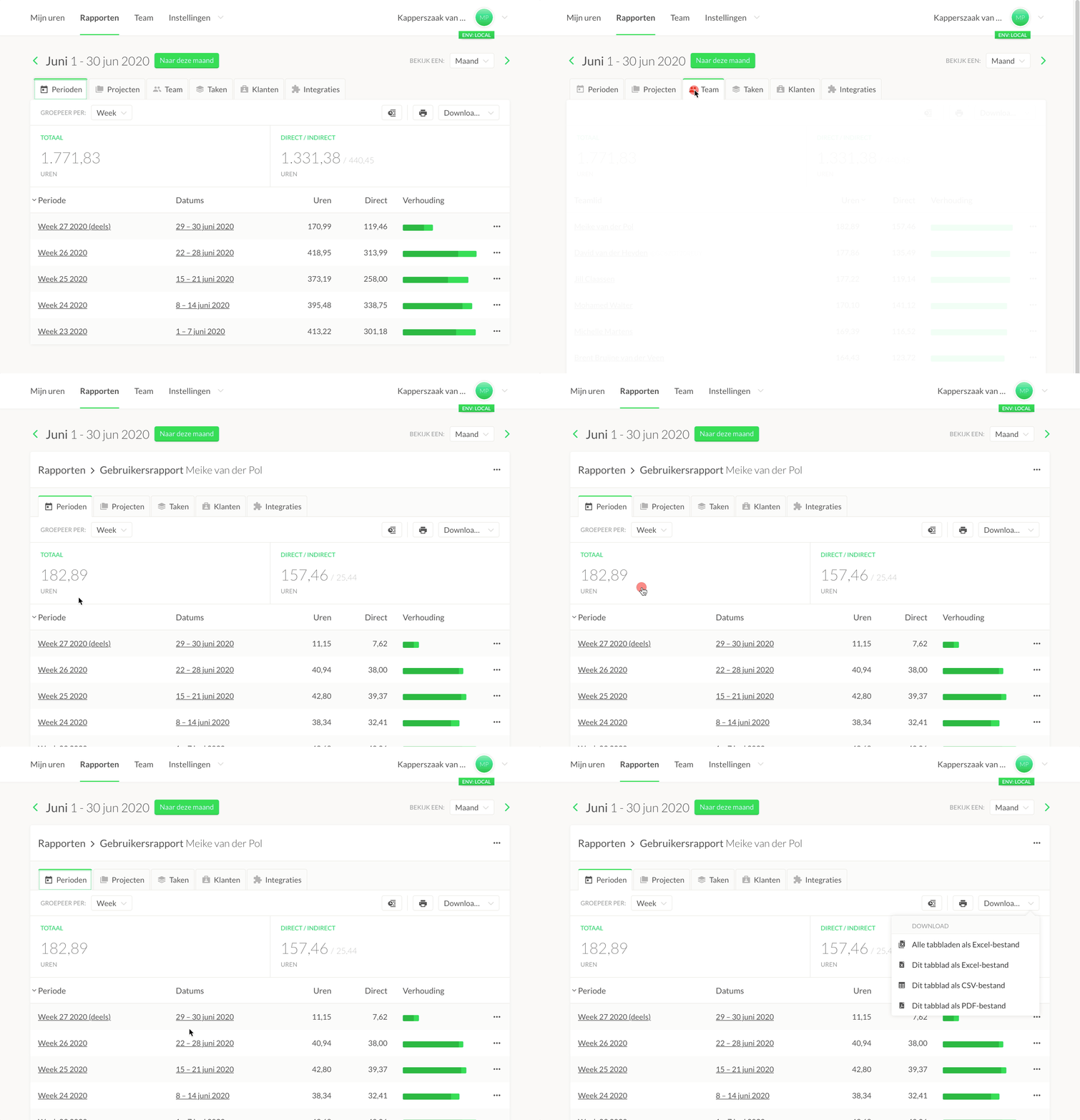
With Keeping’s intuitive time tracker, you can gain insight into the hours spent on tasks. The reports generated daily, weekly, or monthly clearly show the total hours worked by each employee. By comparing this to the employee's contract, you can quickly see if they’ve worked overtime. Employees can also keep track themselves and recognize when overtime is becoming a regular pattern.
- Go to "Reports" in Keeping.nl;
- Click on the "Team" tab;
- Click on the team member’s name;
- Stay on the "Periods" tab and group by: "Day";
- For a monthly overview, select "Month" in the top-right corner;
- Easily export the overview with "Download."
Tracking Overtime Separately
In Keeping, you can create tasks, allowing overtime to be tracked as a separate task. If the workday has ended and the employee continues working, they can log overtime with just one click. This is a clear, simple, and flexible way to track each employee's overtime and optimize workflow.
- Go to "Settings" > "Tasks" in Keeping.nl;
- Click on "New Task";
- Enter "Overtime" as the name and click "Create Task";
- Now, when creating a new time entry, you can select the "Overtime" task.
Tracking Overtime in Excel
Excel can be helpful for tracking overtime as well. Traditionally, employees used large Excel sheets to log all their hours. With time-tracking apps like ours, Excel can now be used differently. It’s possible to export all worked hours from Keeping to Excel, where you can perform advanced calculations and gain insights.
Can Online Time Tracking Help Manage Overtime?
Time tracking, or logging the hours worked (including overtime), is essential for gaining insights into an employee’s hours. We hope these tips help you efficiently track overtime.
Start tracking your (overtime) hours today. Sign up with Keeping and enjoy the first 14 days of the Plus plan for free. And for freelancers, Keeping is always free.