View report for an external item
To use integrations, you need at least a Plus subscription. A separate account for integration is required.
Article Overview:
There are two ways to view all time entries associated with an external item. You can use the Keeping button in the external program or the Keeping reports.
Via the Keeping Reports
Navigate to Reports and then click on the Integrations tab. Here, you’ll find the general reports per external item from the linked integrations in your organisation.
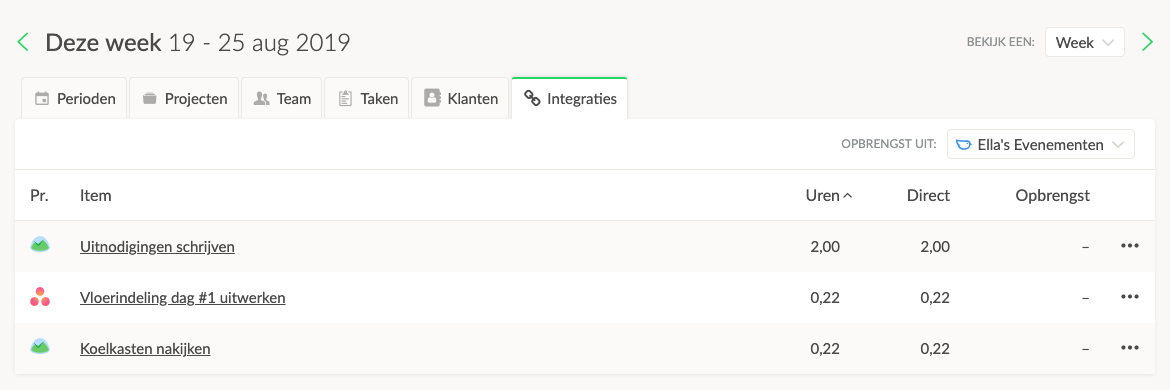
Here you’ll see a list of all linked external items with connected time entries. Adjust the range in the top right under View a: to see more than one week.
View Underlying Time Entries
For the external item whose underlying time entries you want to view, click on the options button (···) and then on List of Underlying Time Entries.
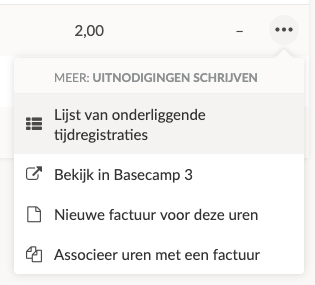
This lets you see specifically which time entries are associated with a particular external item.
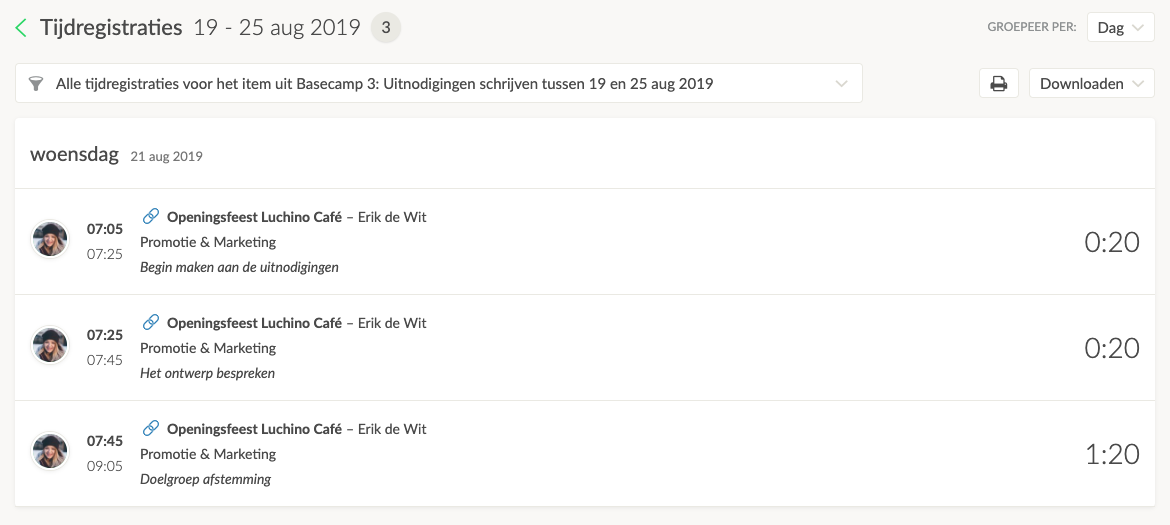
Example List of Time Entries
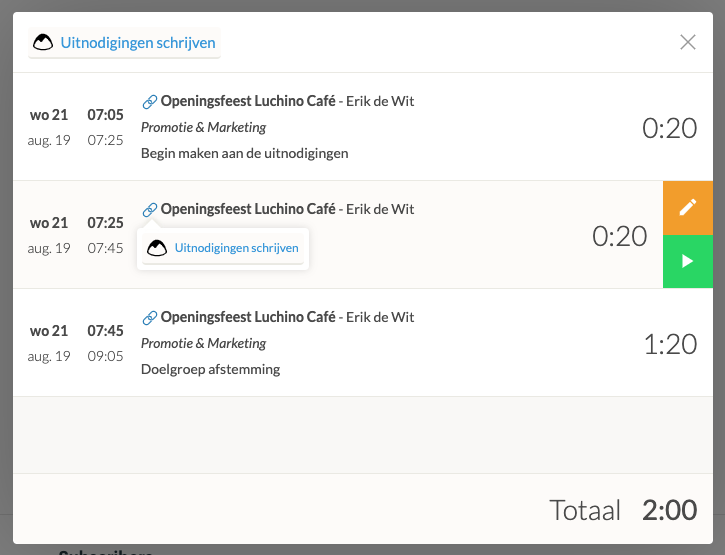
This is what a list of underlying time entries looks like. You can recognize the blue icon that indicates the time entry is linked to a specific external item.
Via the Keeping Extension and External Program
Navigate to an external item where you can find the Keeping button; we’ve chosen a to-do in Basecamp 3 for the example below:
Next to each external item with linked time entries, you can view the total recorded time for the item. Hover over the Keeping button to see this.
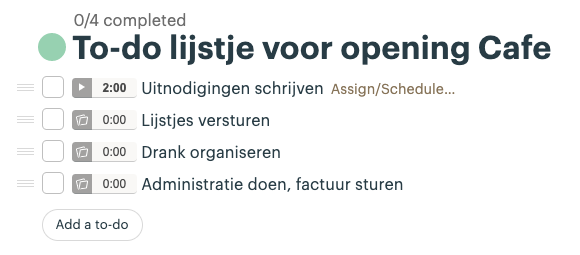
Click on the total time (in this case 2:00) to open the report.
List of All Time Entries for a Specific Item
The window that appears contains all your time entries linked to this specific Basecamp 3 to-do.
This works for any compatible external item in any integration.