View invoice revenues in reports
To link with an invoicing program, you need at least a Plus subscription. A separate account with the invoicing program is required.
This article assumes you are connected to an invoicing program.
Navigate to Reports in Keeping
Below, you can see an overview of hours for different projects. At the top, there is a summary of key numbers for all projects combined, and below that, the main figures are broken down per project.
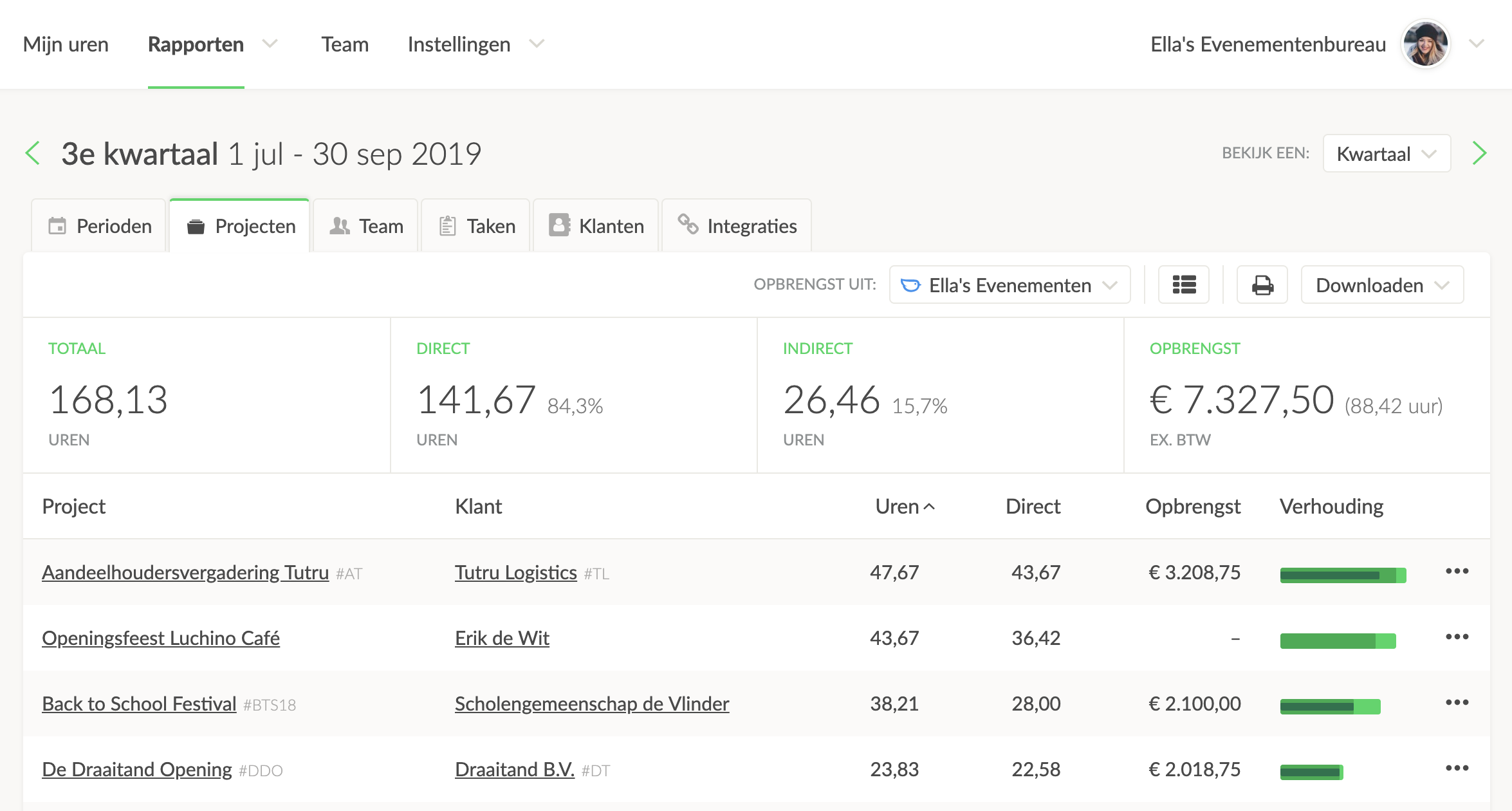
Tip: You can always use the options button (···) to view the underlying hours.
The main sections of the above reports contain extra details when you hover your mouse over specific sections.
Revenue from Administration
An important point to remember is that the reports display the revenue for one administration at a time. The active administration is noted in the bar under Revenue from.
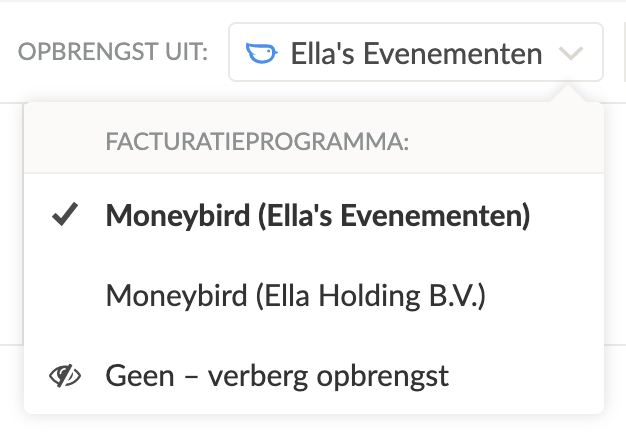
You select which administration's revenue to display in the reports here.
Tip: When downloading a report, it can sometimes be helpful to hide revenue from the invoicing program.
View Details of the Total Revenue
Hover over the total revenue to see what percentage of the logged hours are billed. You can also see how much each billed hour has yielded.
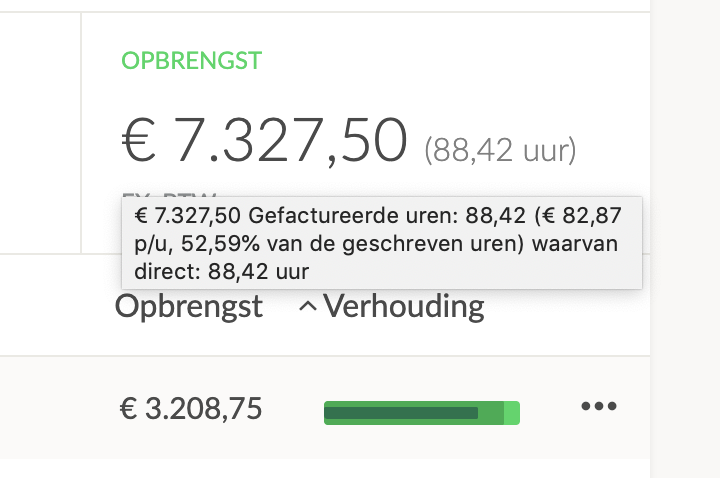
Useful for quickly getting an overview of the total revenue for a period.
View Details of Revenue for a Specific Report
As with the total, you can view the revenue per billed hour and the percentage of billed hours here.
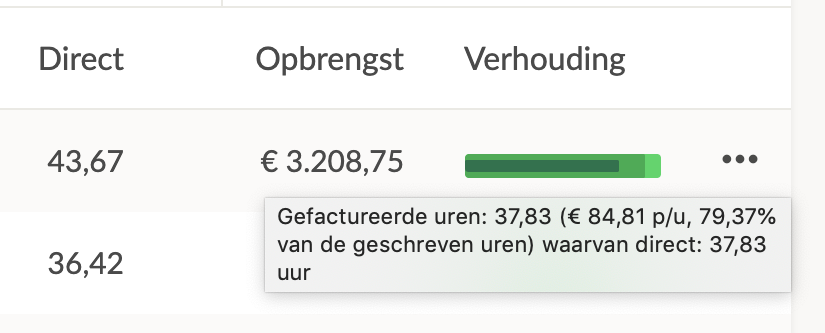
Useful for quickly seeing the revenue per hour.
View Details of the Hour Ratio
Hover over the green bar to view additional details about your hour ratios:
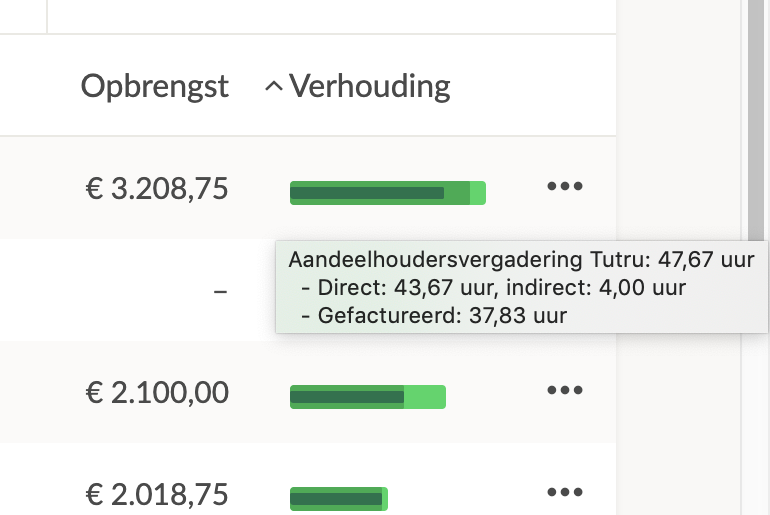
The ratio bar is helpful for quickly getting an impression of the ratio between hours.
Linked Invoices
To view specific invoices linked to a report, you can click on the report name and navigate to the Integrations tab.
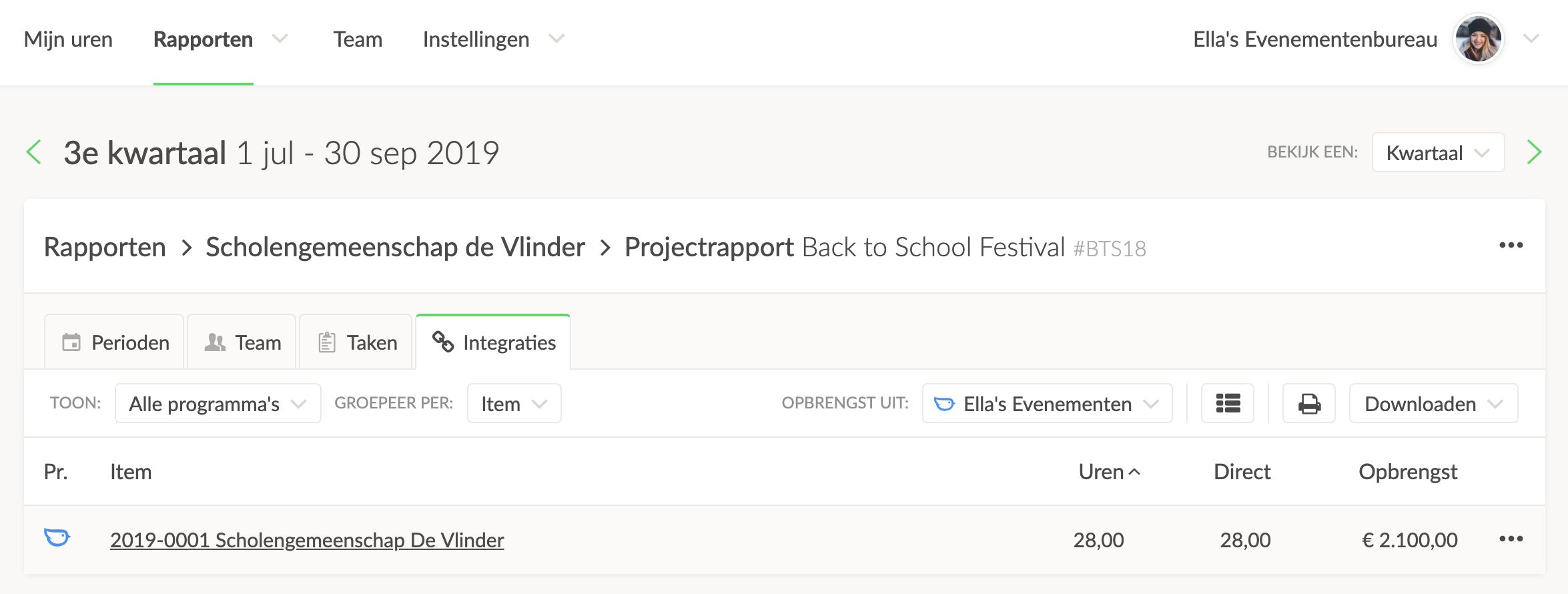
Here you see all invoices linked to hours within this project report.