Download detailed reports
This support page assumes that you have read the page on downloading reports.
Want to print reports directly? Check out printing reports.
Download Detailed Reports as an Excel, CSV, or PDF File
The detailed reports (introduced in 2017) go beyond standard reports. By choosing a detailed report, you can include more details in your report, as the name suggests. Downloading a detailed report of your time entries to an Excel, CSV, or PDF file is simple.
Navigate to Reports in the main menu.

Now, it is important to choose what you want to see a detailed report for:
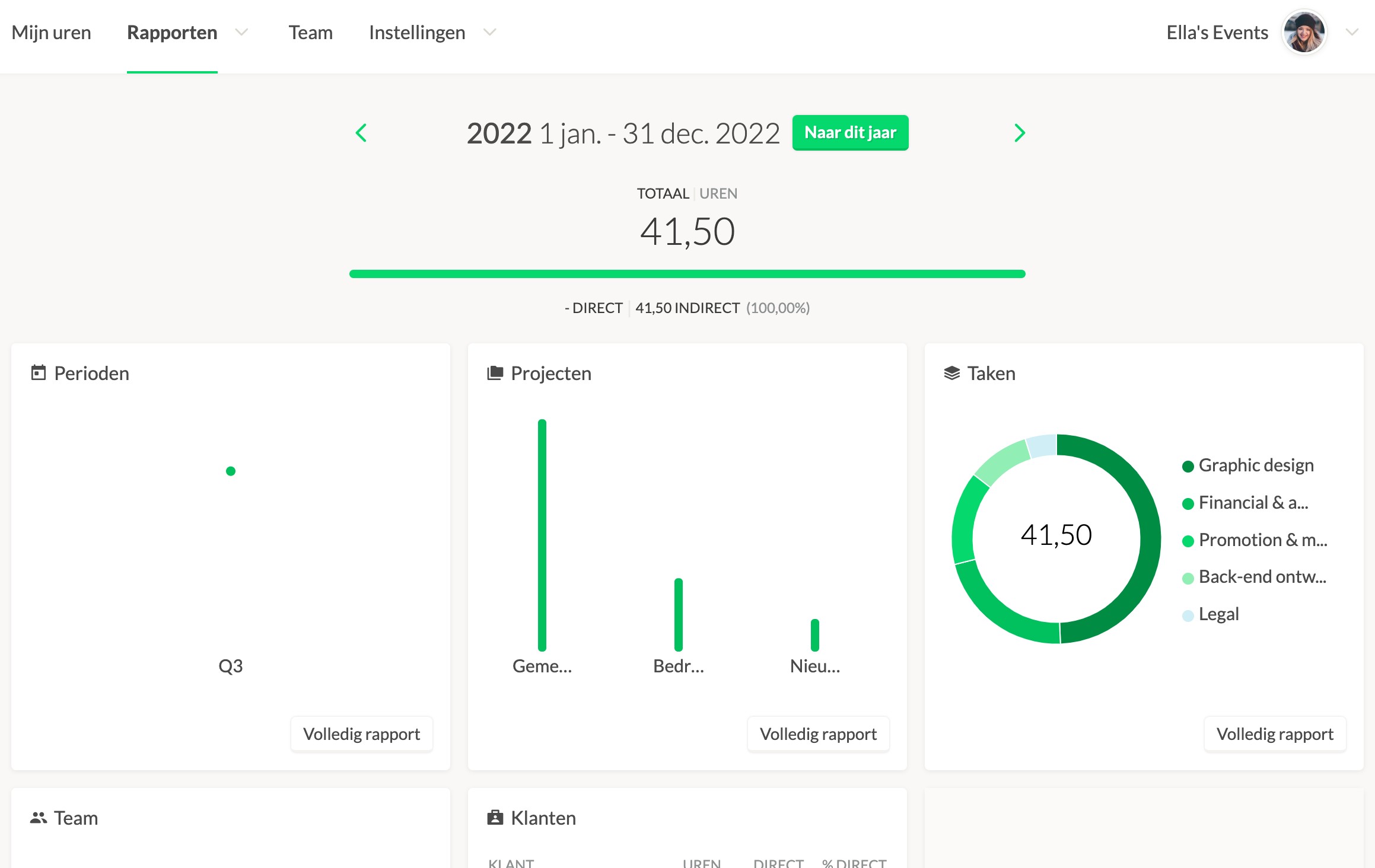 For a report, you can click the button on the right side to view the underlying time entries. Use this button to proceed to the detailed report for those specific time entries.
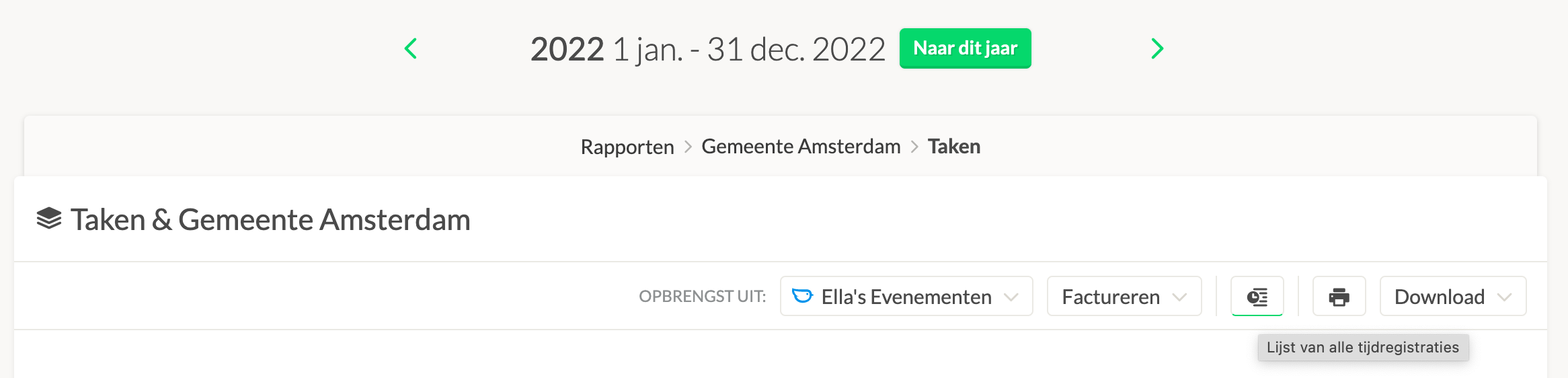
Detailed Overview
After clicking on List of Underlying Time Entries, the detailed report appears. Here, you’ll see a summary of the information currently selected through the tabs and active groupings/filters. This overview displays all relevant time entries.
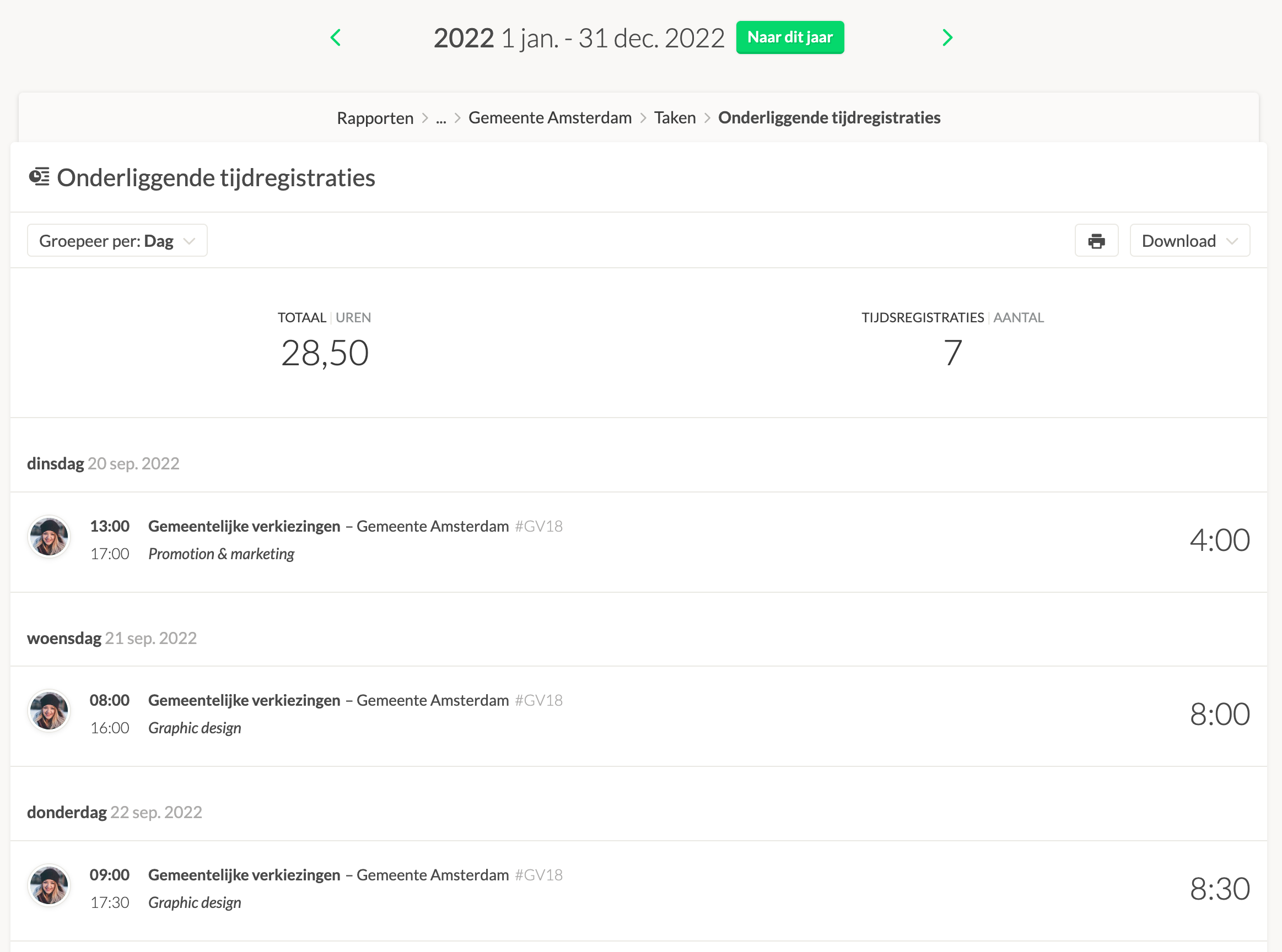
Reports can be downloaded for various periods, projects, tasks, clients, or team members.
Downloading
On the right side of the image, you’ll see the "Download" button. By pressing this button, you can choose the file format you want to download, and a number of options will appear depending on the report.
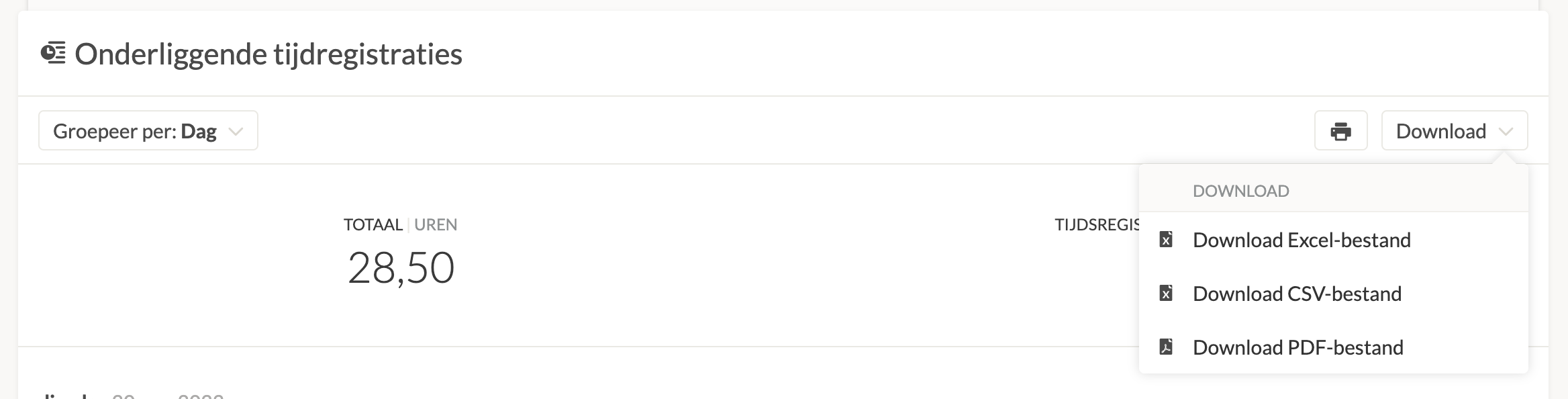
Choosing "Current tab as Excel file," "Current tab as CSV file," or "Current tab as PDF file" downloads the selected tab from the overview screen to the respective file format.
Example of an Excel File
Here is an example of the downloaded file in Excel.

Reports are ultimately a great way to analyze and optimize hours within your organisation. The reporting tool is comprehensive and can sort hours in various ways. The reports are also detailed enough to be used for time accountability.