Using Basecamp 2 with Keeping
To integrate with an external project management program, you need at least Keeping Plus. A separate Basecamp account is required, and any necessary Basecamp subscription is not included.
See also the Basecamp page.
For integration with Basecamp 2, an active Chrome extension or Firefox Add-on is needed.
Article Overview
This article explains various aspects of Basecamp 2 integration. For each specific section, use the navigation below.
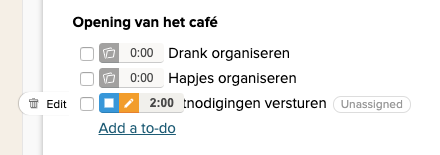
The Keeping button is located in one specific place in Basecamp.
Next to each to-do, both in the list and on the detail page:
How Do I Start a New Time Tracking via Basecamp 2?
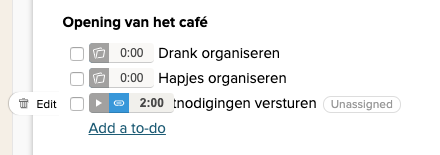
You can start a new time tracking entry directly from Basecamp 2 by using the Keeping button next to a to-do in your list or in the detail view.
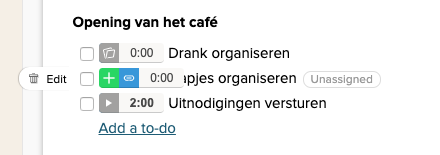
To-Do Is Linked Immediately When Starting Time Tracking
In the new window that appears, you can fill in the details of your time tracking and click start.
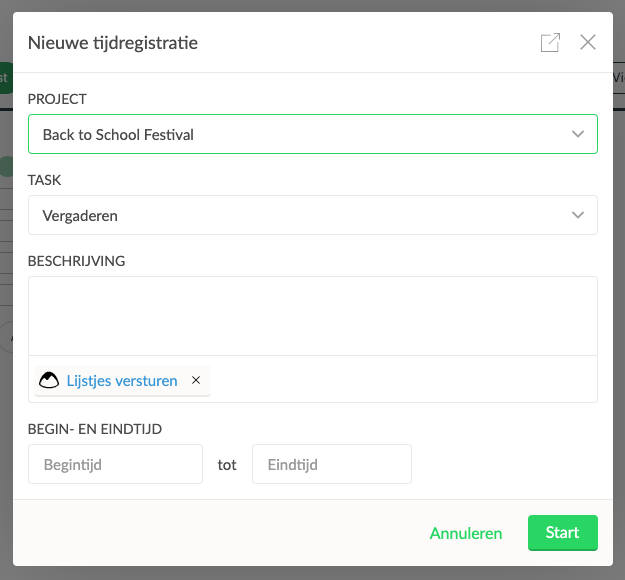
The Basecamp 2 to-do you clicked on is automatically linked to the new time tracking.
How Do I Link an Ongoing Time Tracking to a Basecamp 2 To-Do?
If you have an ongoing time tracking in Keeping, you can use the extension directly in Basecamp 2 to link the current time tracking to a Basecamp 2 to-do.
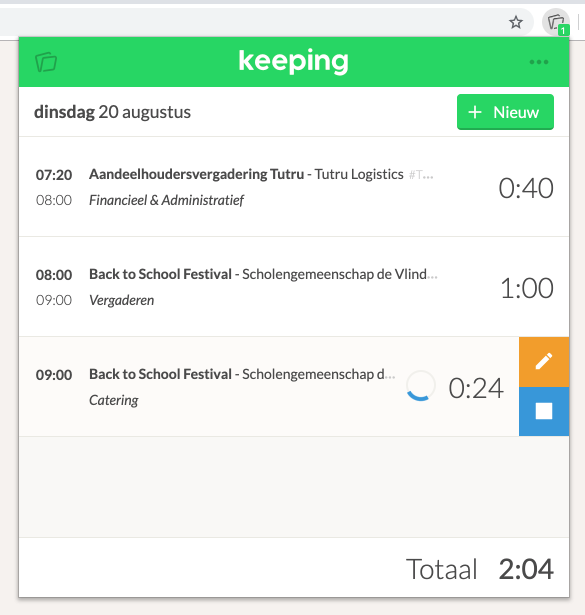
This is an ongoing time tracking without a link.
Creating the Link
In Basecamp 2, navigate to your to-do list or to-do item and use the blue link button.
Your Time Tracking Is Now Linked
The link with the Basecamp 2 to-do is now complete!