Using Todoist with Keeping
How Can I Use the Keeping Button with Todoist?
The integration with Todoist is exclusively for the web application of Todoist.
To connect with an external project management program, you need at least a Plus subscription. Additionally, a separate Todoist account is required. A Todoist subscription, if needed, is not included.
Check out the Todoist page.
For the integration with Todoist, an active Chrome extension or Firefox add-on is needed.
Article Overview:
This article explains various parts of using Keeping with Todoist. For each specific part, you can use the navigation below.
The Keeping button can be found in two places in Todoist.
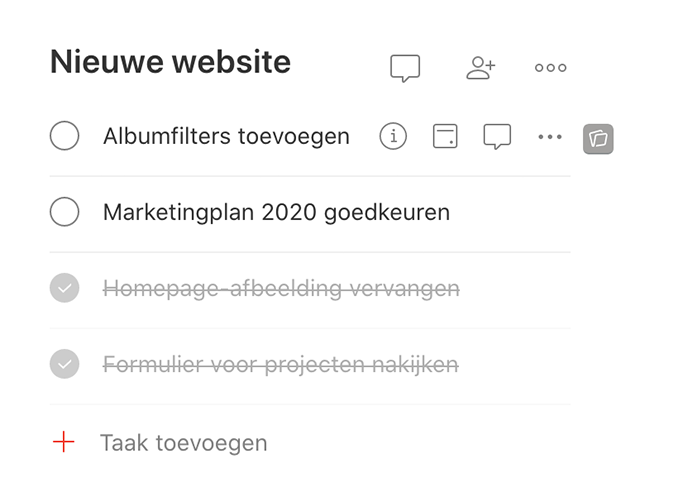
Next to each todo in Todoist, you will see the Keeping button:
In the detail screen of each todo in Todoist:
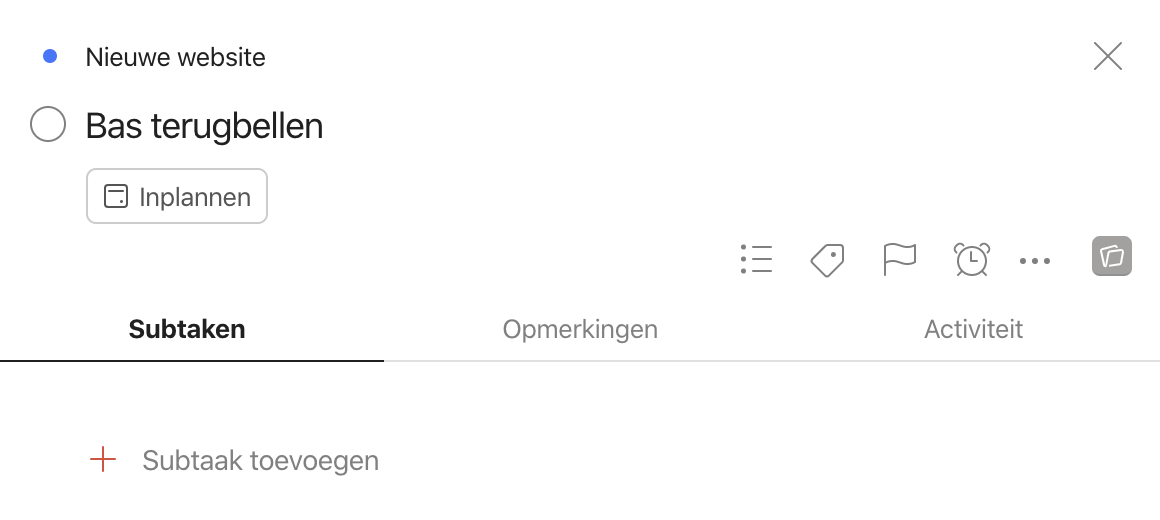
Hover over the Keeping button in Todoist to see more options.
How Do I Start a New Time Entry via Todoist?
You can start a new time entry from Todoist by using the green Keeping button:
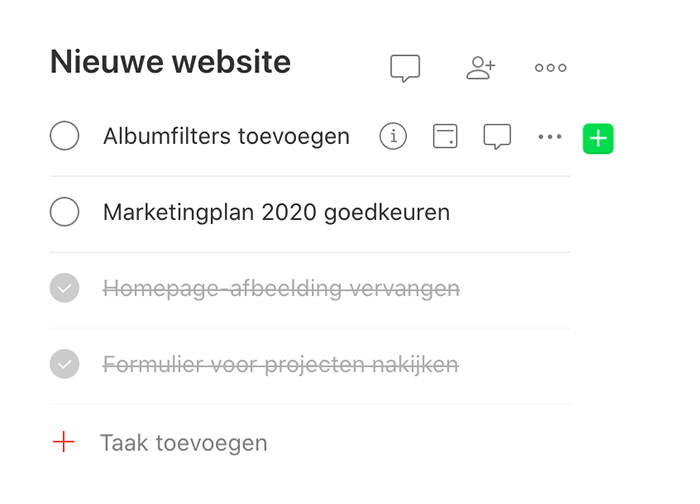
Click the green + button to start a time entry.
Todoist Task is Linked When Starting a New Time Entry
In the new window that appears, you can fill in the details of your time entry and click start. The Todoist item you clicked on is automatically linked to the new time entry.
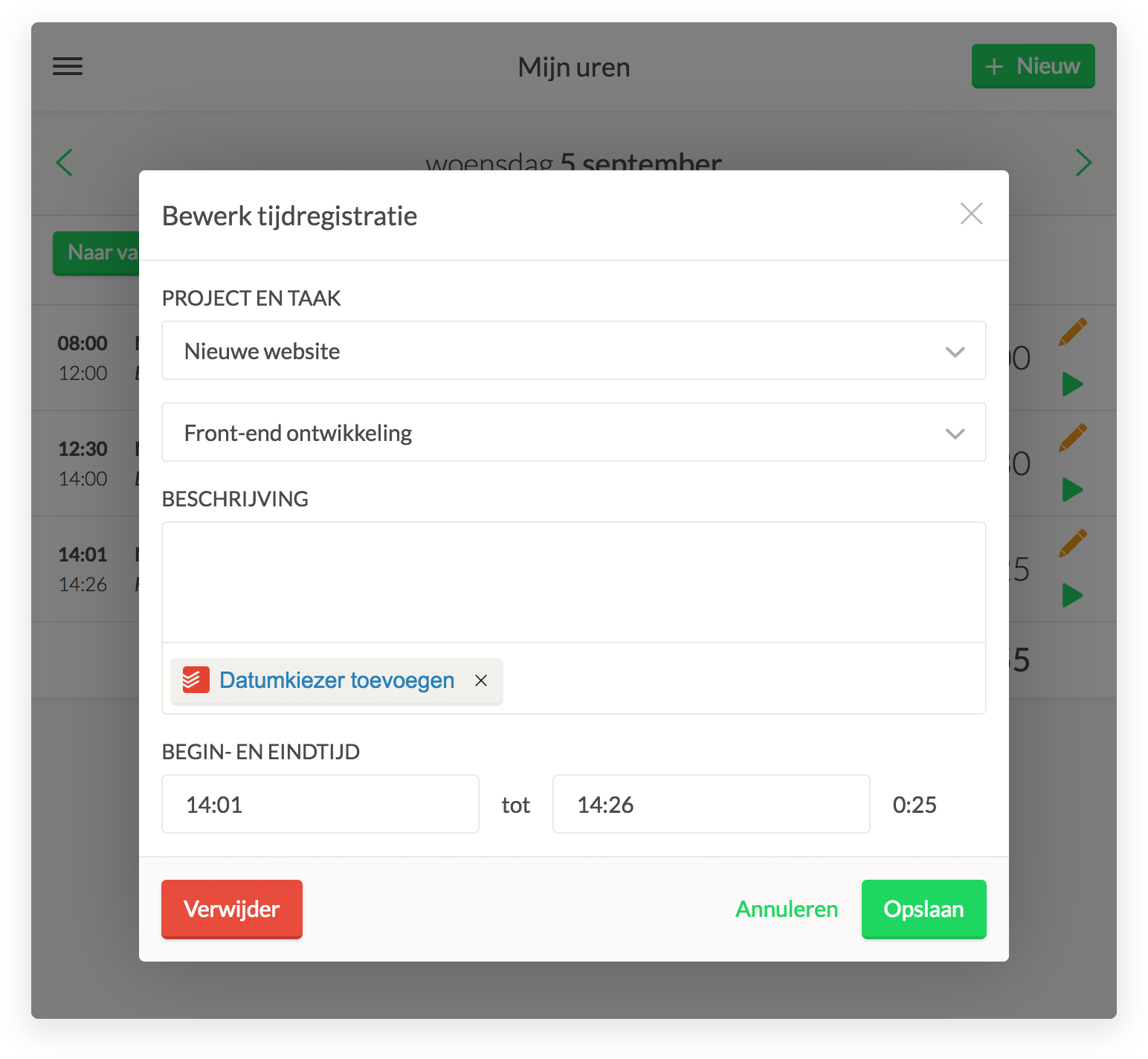 The Todoist task is clickable.
How Do I Link an Active Time Entry to a Todoist Task?
If you have an active time entry in Keeping, you can link the current active time entry to a Todoist task through the extension.
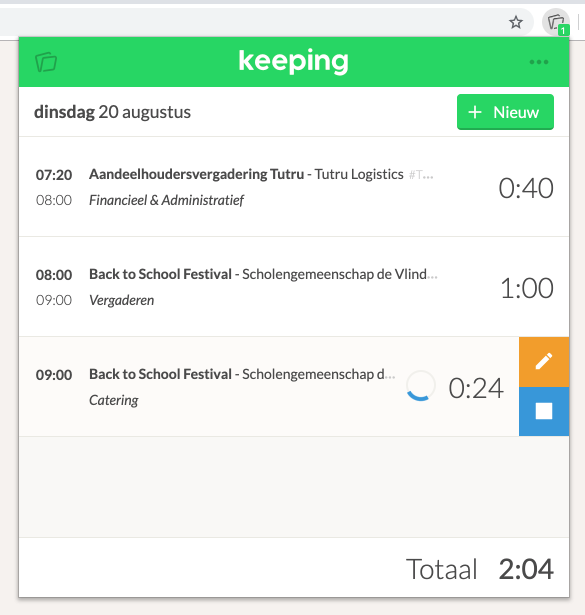
This is an active time entry without a link.
Realizing the Link
Navigate in Todoist to a task and use the blue link button. This can be done in both the detail screen and the task list.
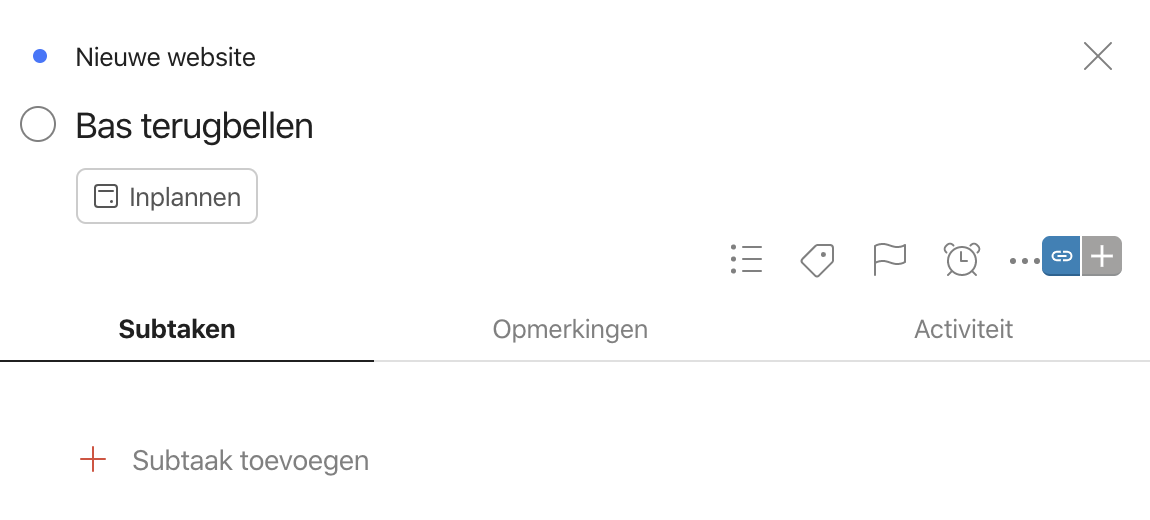
The blue button indicates that an active time entry can be linked to this task.
Your Time Entry is Now Linked
The link with the Todoist task is now complete!
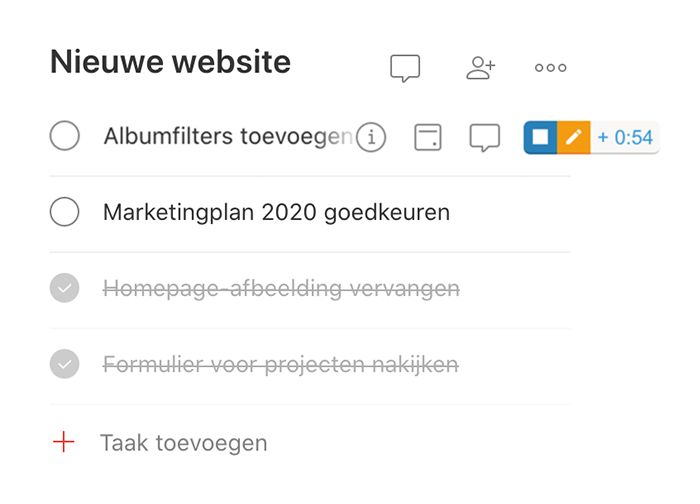
The timer indicates that the link is successful.