Per day with hours
When using Keeping, the main purpose is of course keeping track of hours. This can be done in two ways: precisely per minute as described below and precisely per day.
My hours
Under My hours you will find your time entries for that day. This is also where new time entries are entered. In the image below, no time entries have been entered yet. A new time entry can be started by clicking the green button with the plus icon. An input window will open where you can enter the details of the time entry.
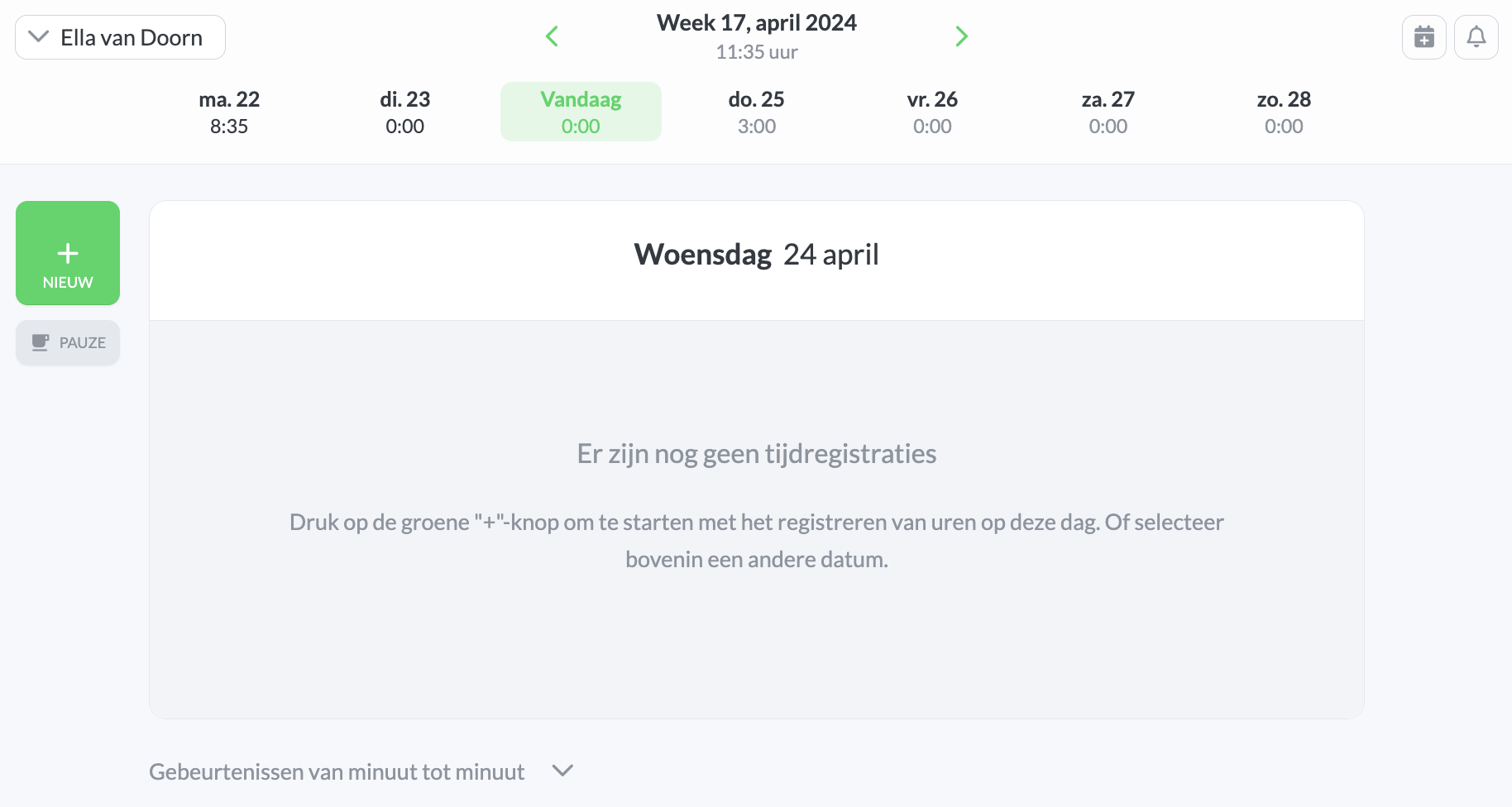
An empty day – hours per day with times.
Per day with times
When entering new time entries you will see Start and end time. For example from 09:15 to 10:30.
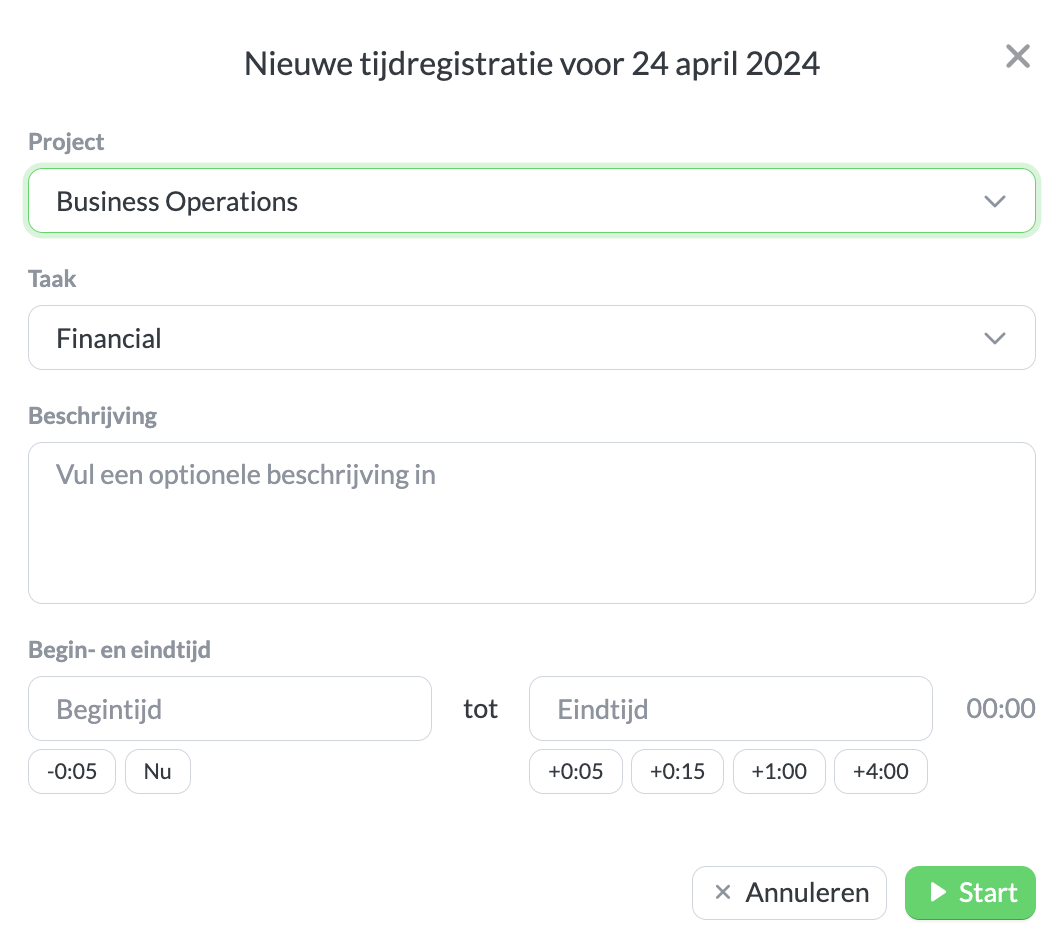
The input window for a new time entry.
Above you can see the input window for creating a new time entry. The input window can be accessed via the green button with the plus icon, or by pressing the spacebar.
The input fields may vary depending on the settings of the organization where the hours are logged. If projects are enabled and tasks are enabled, the fields Project and Task can be filled in.
If no start or end time is specified, Keeping will set the start time to the moment of entry. The timer will then begin running.
If you want to start a new time entry and close the current time entry, there is no need to stop the current entry first. Creating a new time entry via the input window will stop the last running time entry and start the new one.
Switching input method
You can track hours in two ways: per day with times as described in this article, or simply per day. The input method can be switched under Settings → Features → Workflow. Adjusting this input method can only be done by the organization owner or an administrator.