Register break
To use breaks, you need at least Keeping Plus.
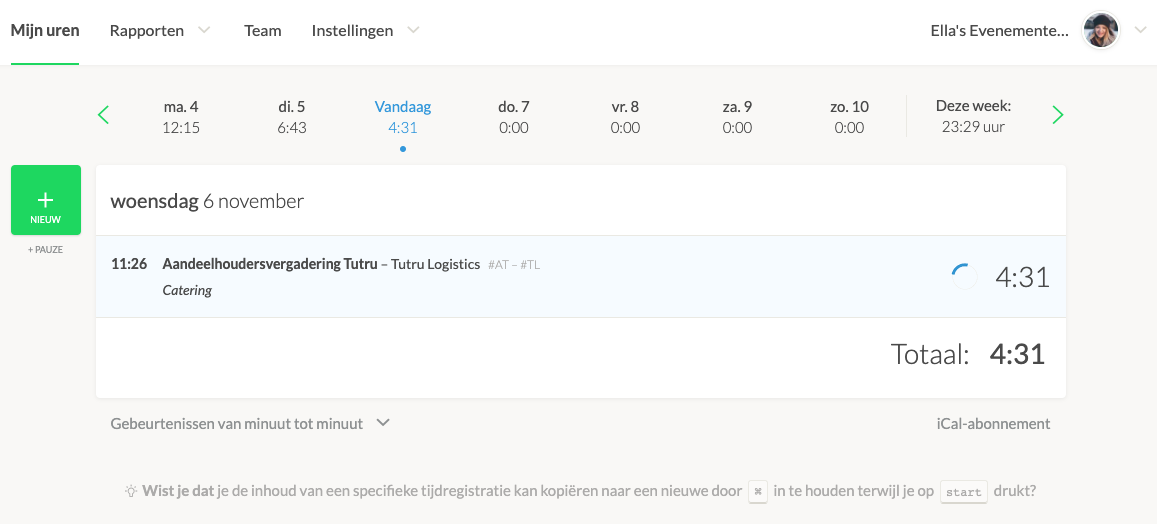
If breaks are enabled for your organization, you can track your breaks separately in Keeping. In the time registration screen, when breaks are enabled, a separate button appears for registering breaks below the green button used to start a new time entry.
This article covers the following topics:
- Registering breaks
- Breaks never overlap time entries
- Breaks in the Android app
- Breaks in the iOS app
- Breaks in reports
Registering breaks
Once breaks are enabled, a few things change. The most important is that an extra button is now available in the interface of your My hours overview.
The button looks like this on a large screen:
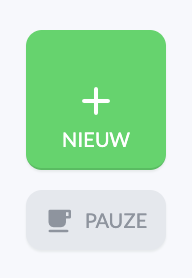
The small text under the large green button is the break button.
The button looks like this on a small screen:
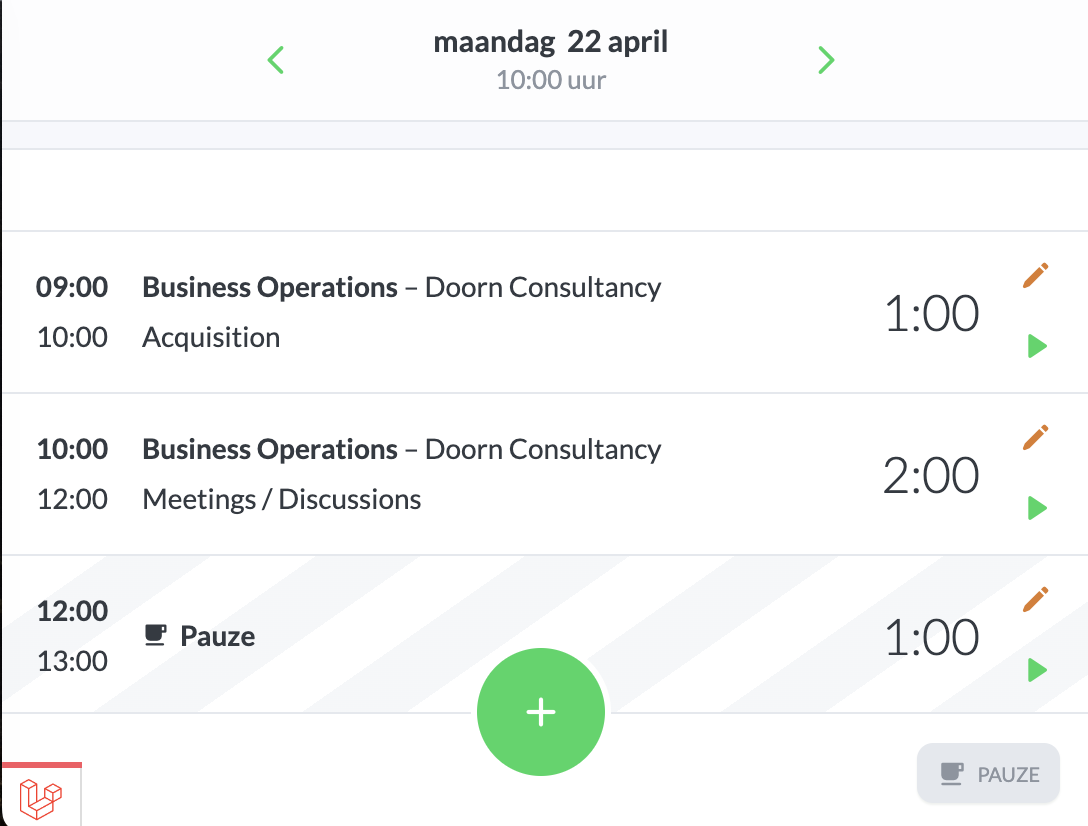
The coffee-cup icon at the bottom right is also a break button.
Clicking the break button lets you enter the break details, such as duration and optionally a note. Breaks work similarly to a regular time entry. This window is simpler than a time entry window—you only need to enter the duration of your break (and optionally a description). If no time is entered, the break starts at the moment you press Start.
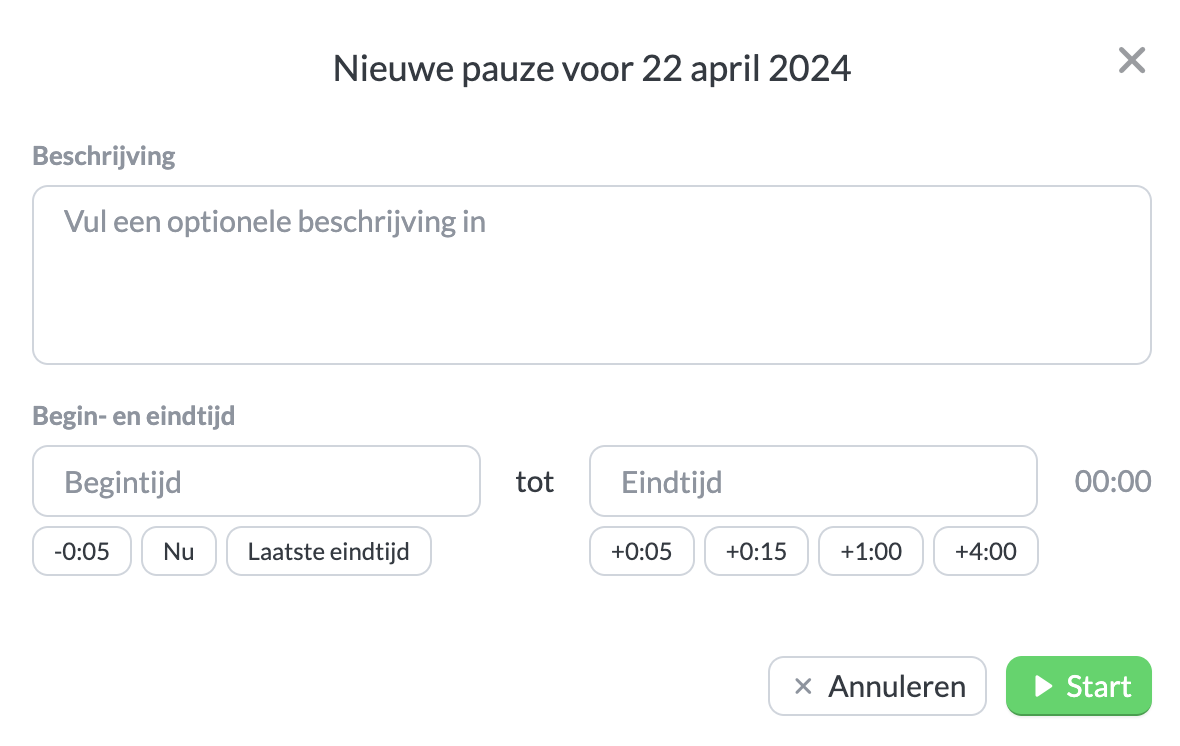 The window for entering a break.
Breaks never overlap time entries
Breaks and time entries can never overlap. If you work with start and end times and add a break that falls (partially) during a normal time entry, the normal time entry is adjusted to make room for the break.
Example of how a break splits a time entry.
How breaks work
Breaks work the same as regular time entries, so you can also adjust or stop them using the buttons next to the entry. Breaks are not included in the calculation of total hours worked per day.
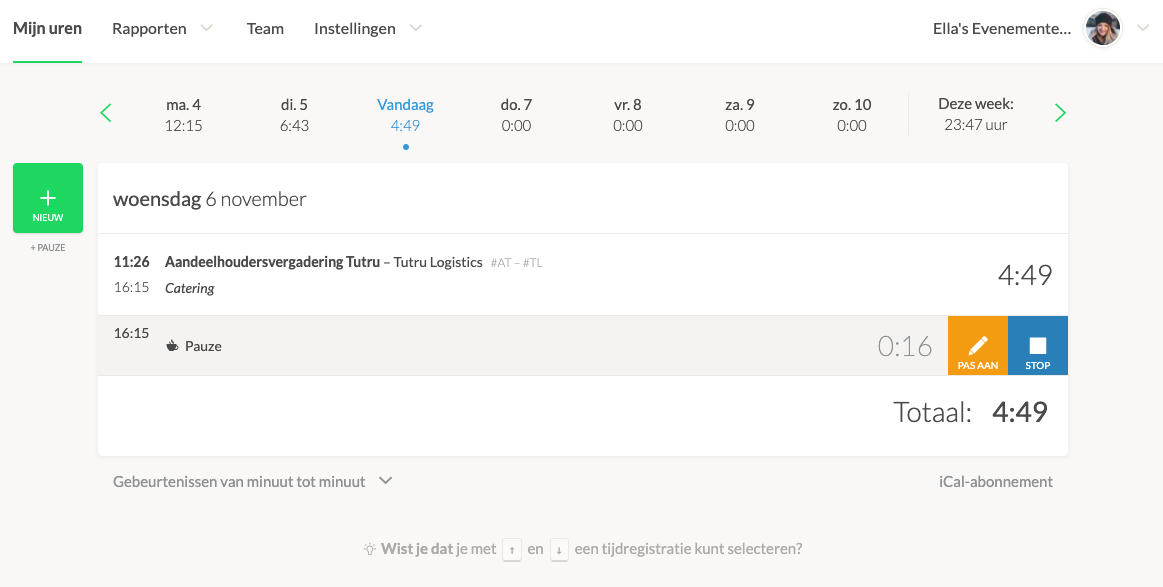 Adjust a break just like a time entry.
Important to know
If you try to add a break during a locked time entry, it will not work. To add a break overlapping a time entry, the entry must first be unlocked.
If you try to create a time entry entirely during a break, it will fail. The break takes priority over the regular time entry. If the break falls within a regular time entry, the entry will automatically be split.
Breaks via the Android app
Breaks are also supported in the Android app. You can create a break by long-pressing the green button for a new time entry. The break (coffee) button will appear. Tap it to create a new break.
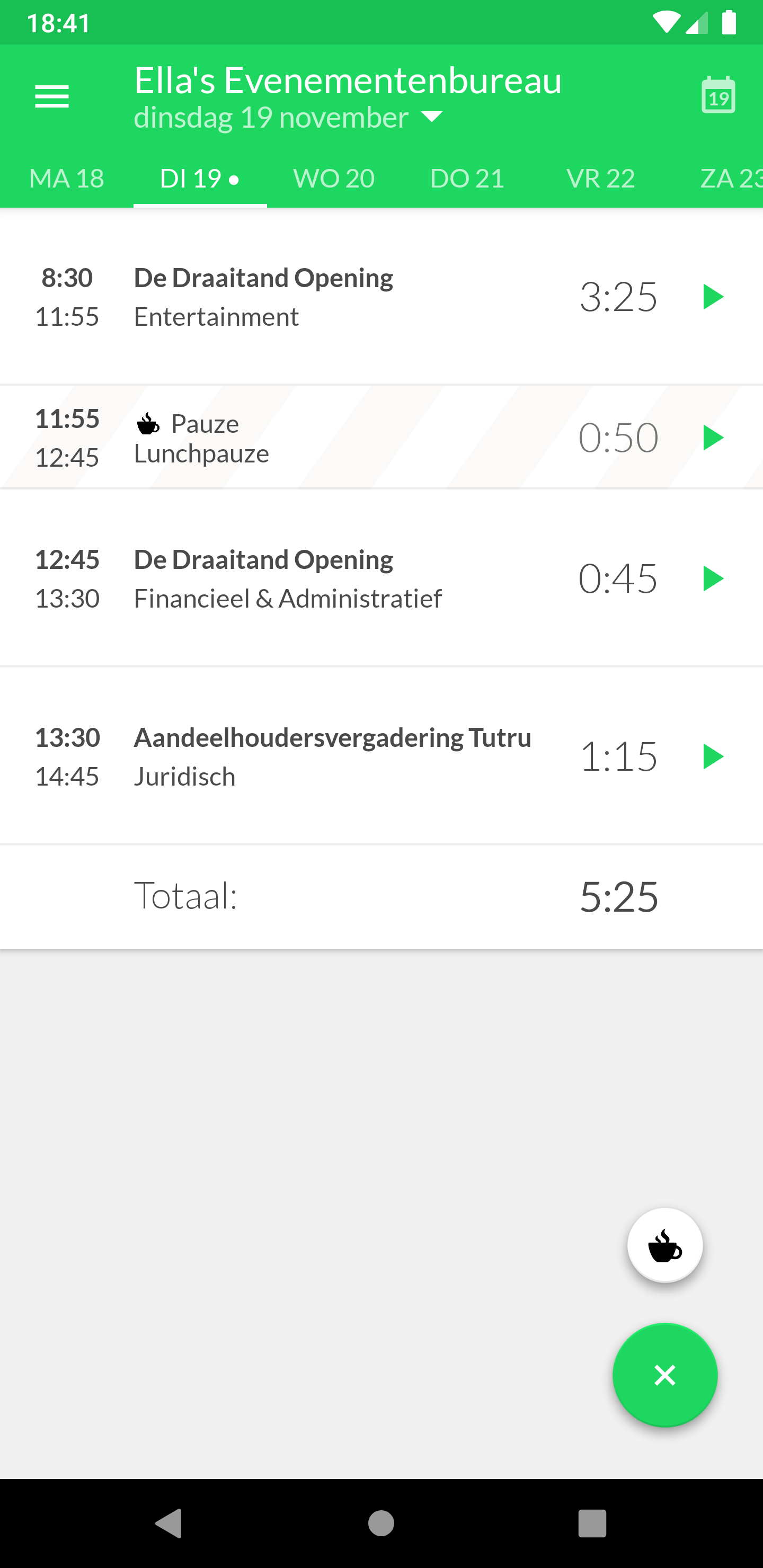 This is what the button looks like on Android.
Breaks via the iOS app
Breaks work slightly differently in the iPhone app. Hold the + button to choose between a regular time entry or a break. Don’t worry: a normal (short) press on the + button works as usual.
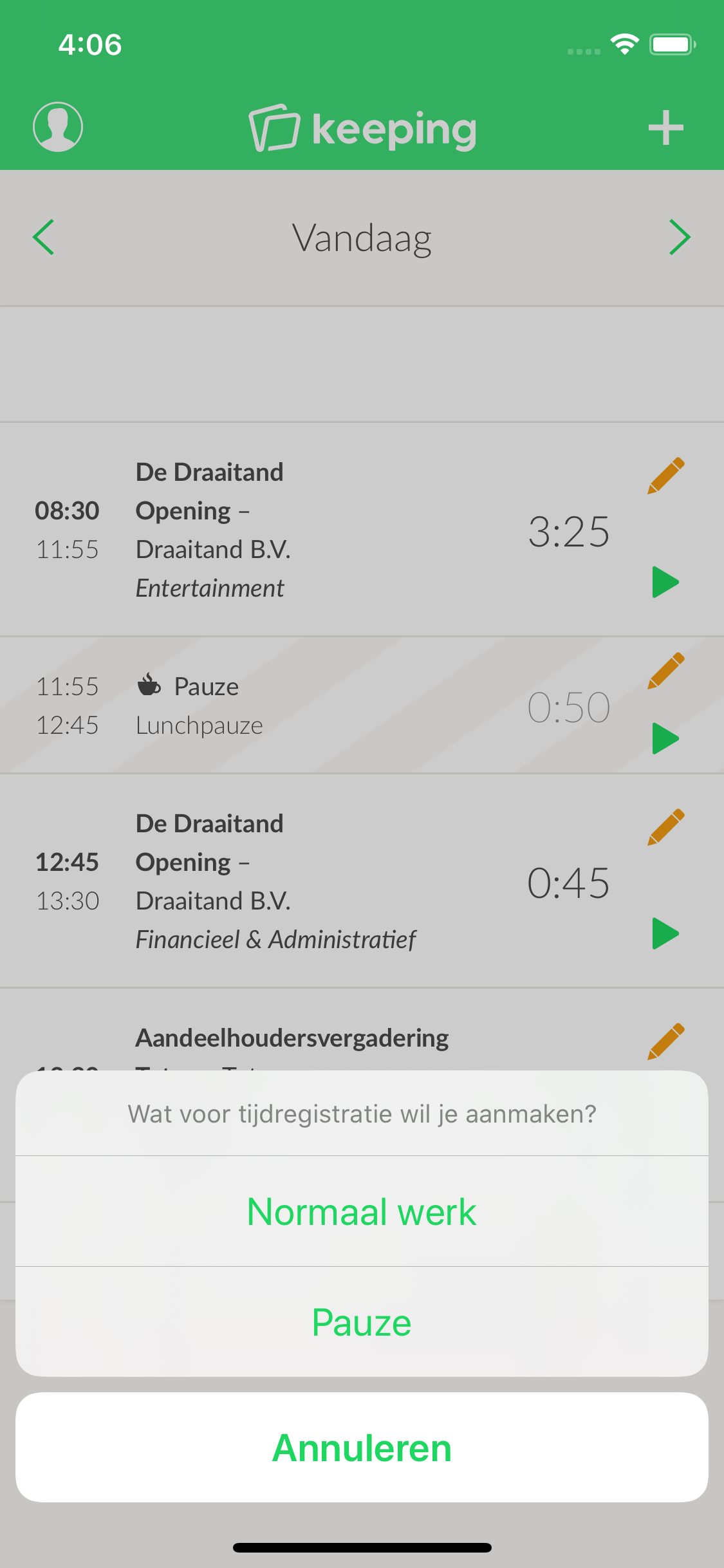 This is what the menu looks like on iPhone to add a break.
Breaks in reports
Breaks are displayed separately in reports. Read more about breaks in reports.