Create a new invoice in Moneybird
To connect with an invoicing program you need at least Keeping Plus. In addition, a separate Moneybird account is required. Any necessary Moneybird subscription is not included.
After you have connected Keeping and Moneybird, you can create Moneybird invoices directly from Keeping.
Creating an invoice
You can create a new invoice in different ways, for example via the New invoice button in the invoice overview screen. You can also use the toolbar in the reports to use the current report overview as input.
In the example below we create an invoice via Invoices.

In the overview of associated invoices, use the New invoice button.
The invoice screen
First select in the top right which integration you want to use for invoicing. Then choose the hours for which you want to create the invoice:
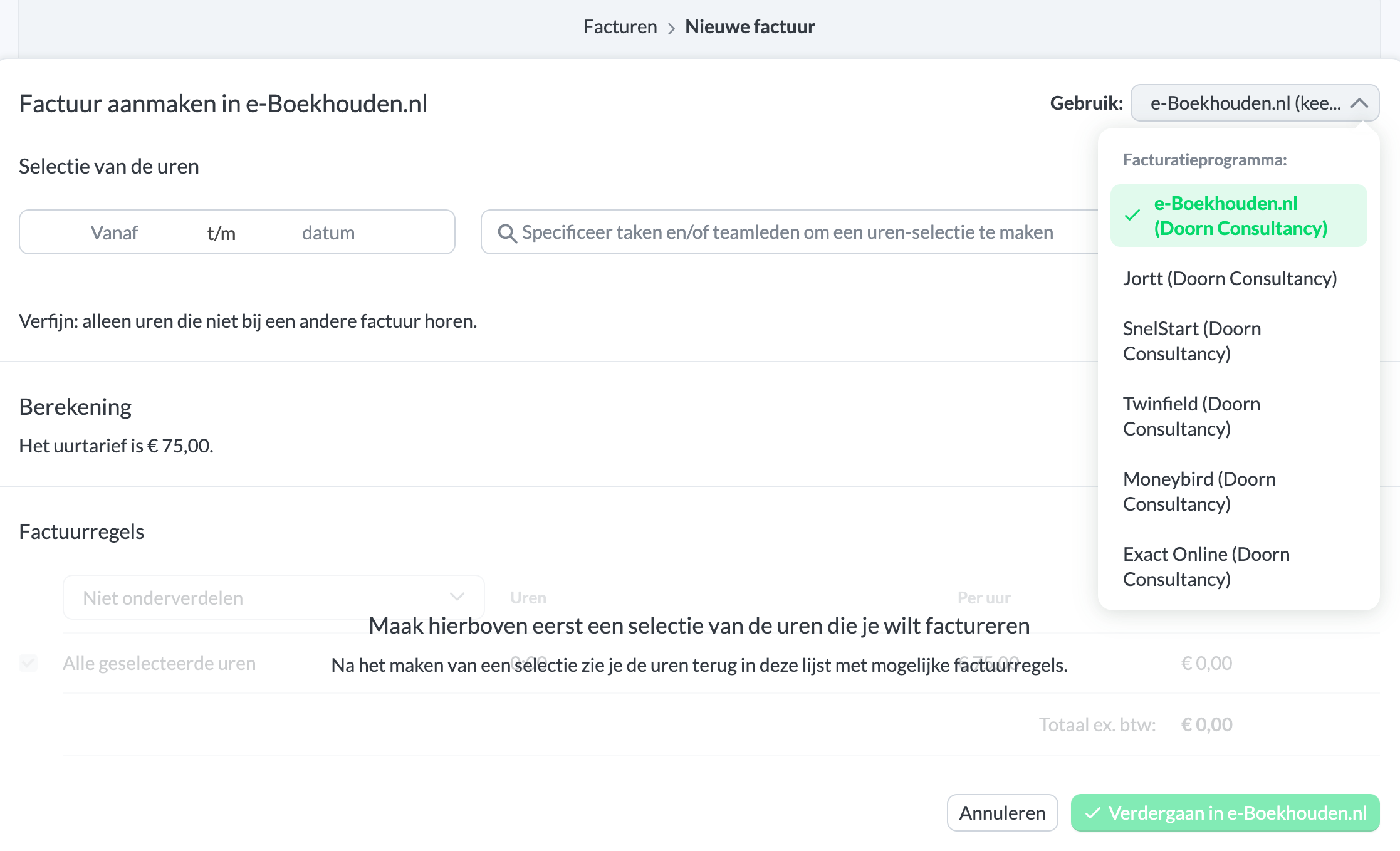
In this screen you see all details of the hours relevant to your created invoice. You can select the date range, projects, clients, tasks, and team members to refine your selection.
Extra options
You can also use the extra options to further refine your selection:

Here you can choose to include already invoiced hours in this invoice, or only include non-invoiced hours. You can also choose not to include already invoiced hours with this integration (useful if you add multiple administrations to your organisation). You can also decide whether to include indirect hours for this invoice, or only direct hours.
Read more about direct/indirect hours.
Determining the invoice amount
The rate can be determined in different ways.
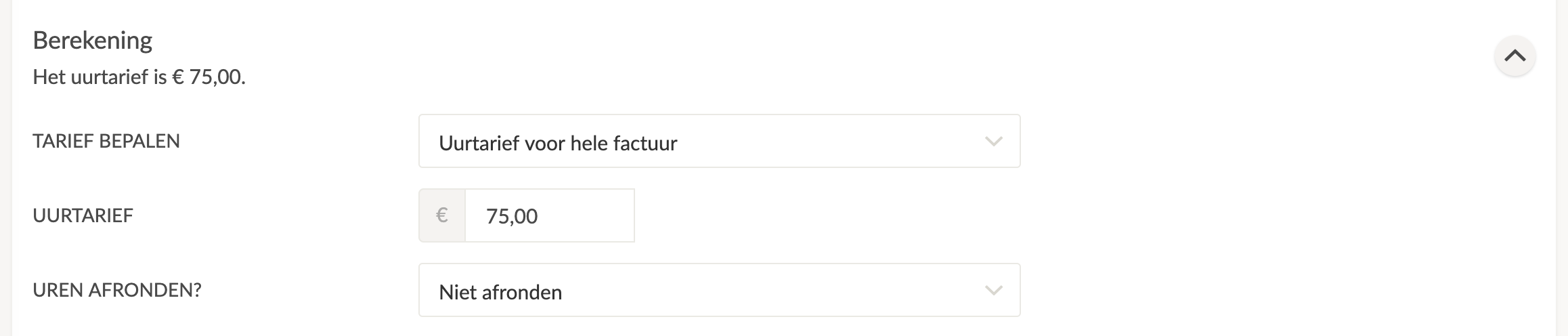
Choose how the rate is determined:
- Hourly rate for the entire invoice, which means all hours are charged at the specified hourly rate;
- Hourly rate per invoice line, specifying an hourly rate per line;
- A fixed amount per invoice line;
- A total amount for the entire invoice.
You can also choose whether to round hours to: whole hours, half hours, quarters, 10 minutes, or 5 minutes. Of course, you can also choose not to round the hours.
Breaking down the invoice lines
An important part of specifying your invoice is determining the breakdown of the invoice lines. These provide a great deal of detail to your invoicing.
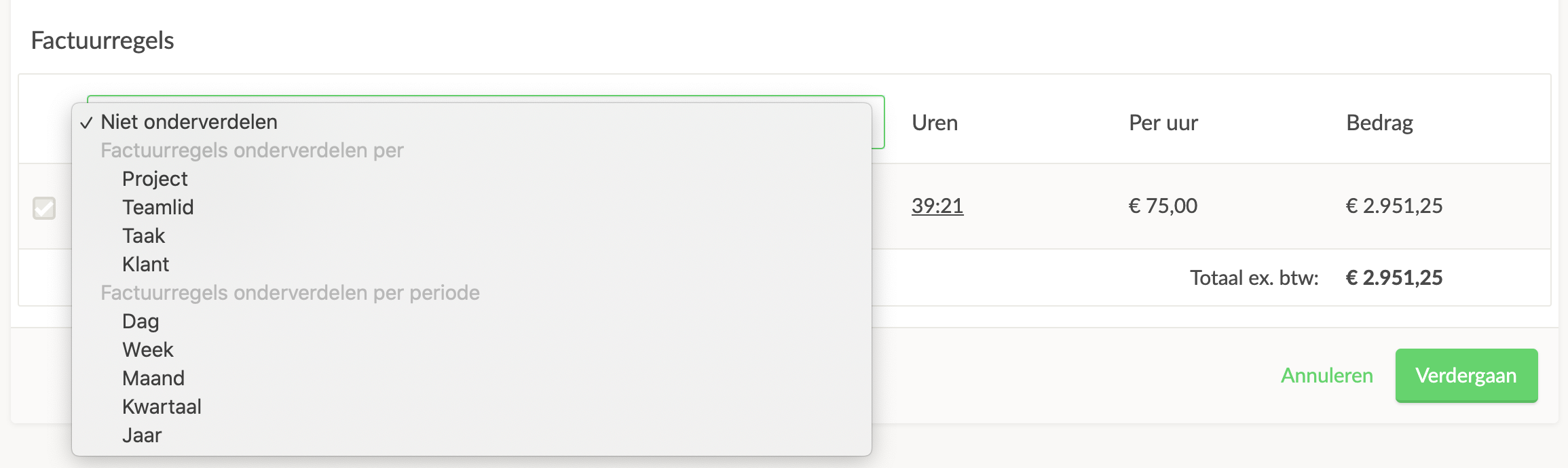
You can choose to break down your invoice by project, team member, task, or client. Alternatively, you can also break it down by period, such as days, weeks, months, quarters, or years.
A breakdown per task, with an hourly rate per invoice line, looks like this:
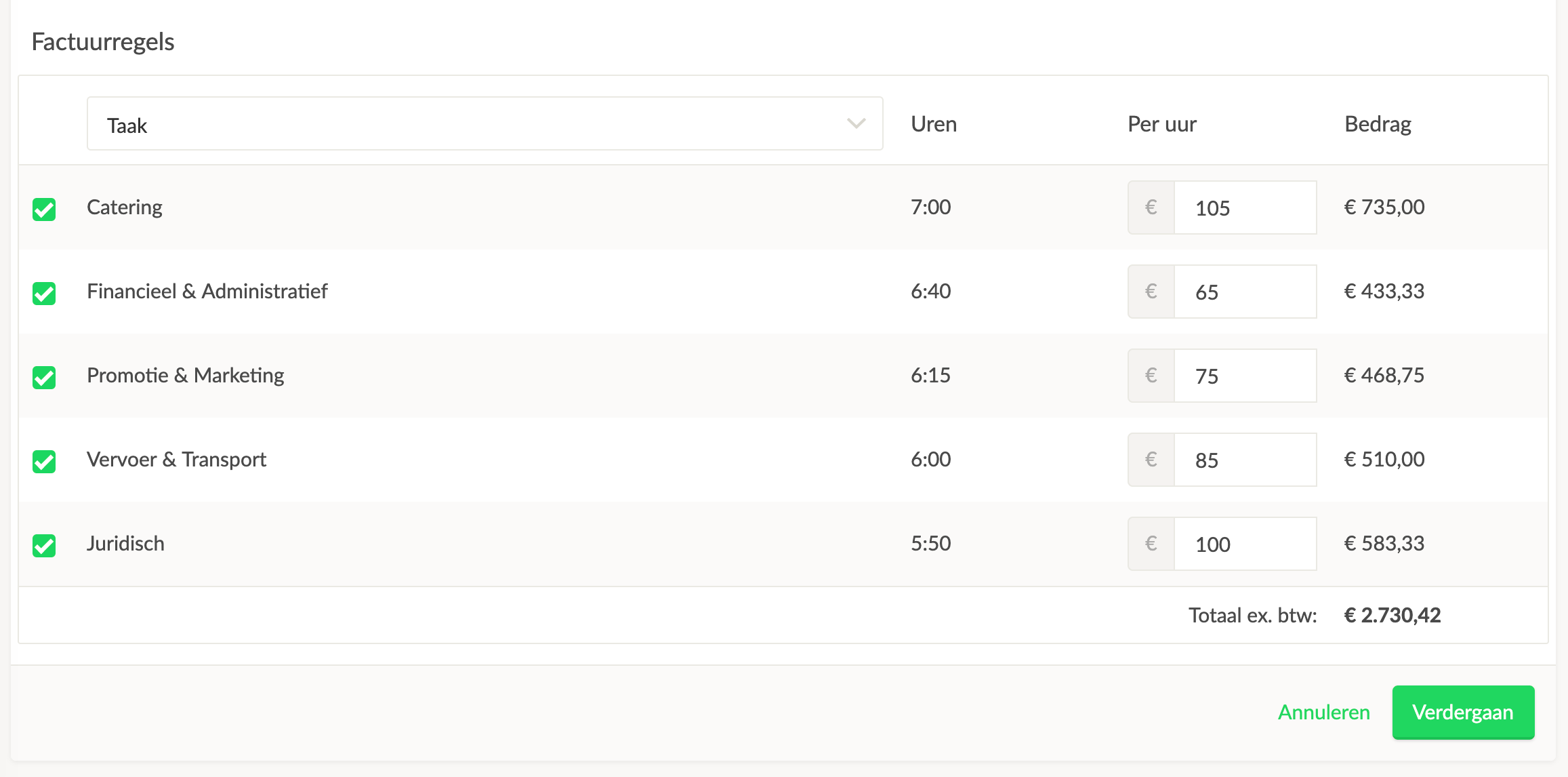
Once you are done selecting hours, you can click on Continue in Moneybird.
To Moneybird
You are then redirected to your Moneybird environment where you can review and edit the invoice one last time before sending it.
It looks like this: 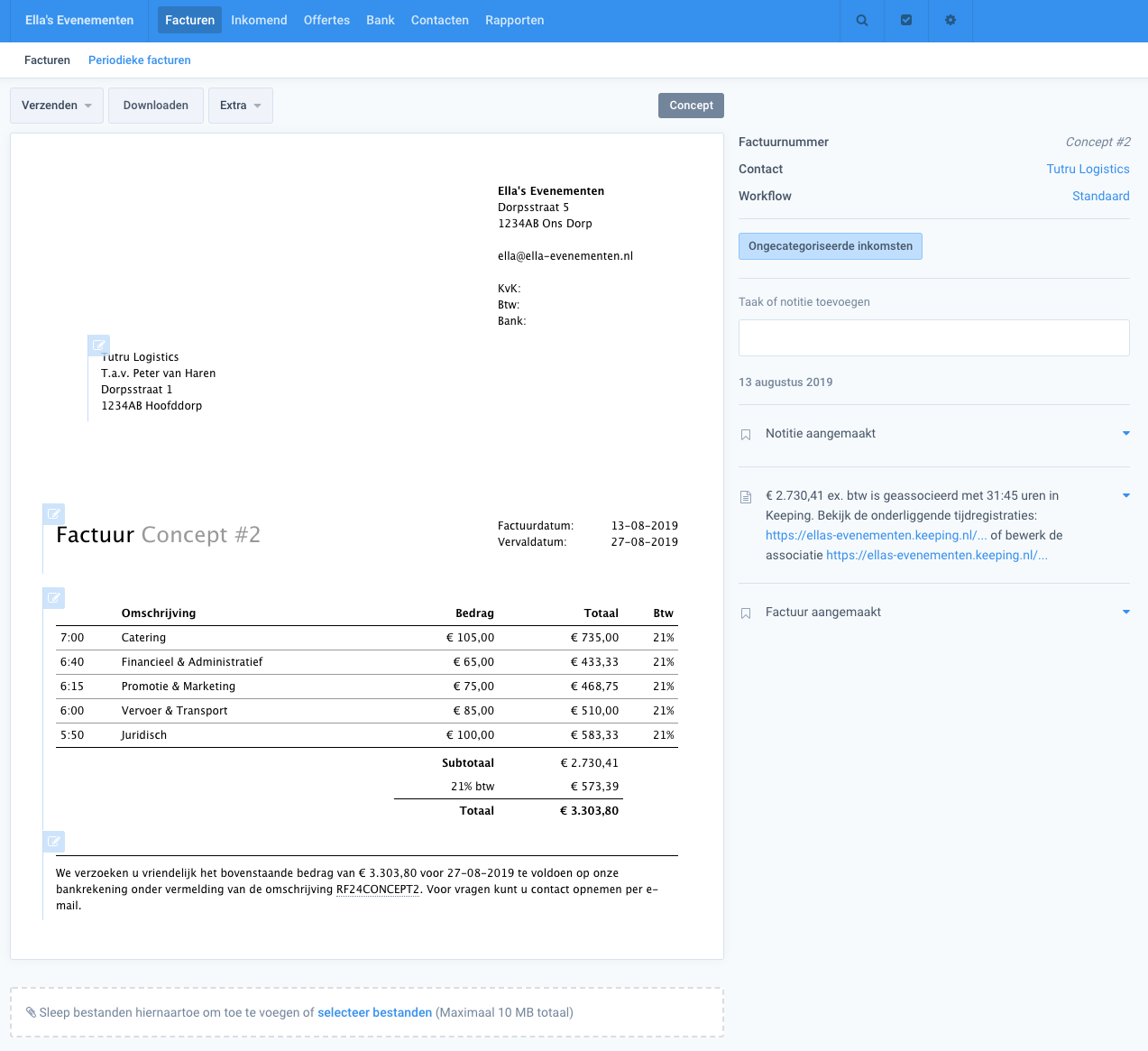
Note that the invoice still needs to be sent.
Back to Keeping
After creating the invoice, a handy note is added to the Moneybird invoice with some extra information. With the two links in the note you can quickly see all underlying hours in Keeping, or adjust the association.
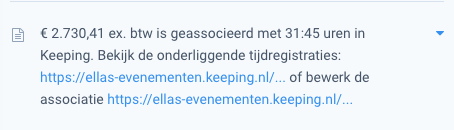
As soon as you navigate back to Keeping, you will immediately see the revenue of the invoice reflected in the corresponding report. This makes it very easy to gain insight into how your recorded hours relate to your invoiced hours.
On the Moneybird page you can read more about our integration with Moneybird.